# Zeabur AI Hub + OpenCode: Pay-As-You-Go AI Coding
> Stop paying monthly subscriptions. Connect OpenCode to Zeabur AI Hub to access GPT-5 and Claude 4.5 in your terminal with a unified pay-as-you-go API.
Imagine a tool as powerful as [**Claude Code**](https://zeabur.com/blogs/use-claude-code-with-ai-hub), but with the ability to switch models from **GPT-5** to **Claude Sonnet 4.5** instantly—without manually managing multiple subscriptions and API keys.
[**OpenCode**](https://opencode.ai/) has emerged as the premier **OpenCode CLI** for developers who want a **GPT-5 terminal coding assistant**. However, configuring it effectively requires the right infrastructure. By integrating **Zeabur AI Hub**, developers can unlock a flexible model that provides access to top-tier LLMs without the burden of fixed monthly fees.
In this article, we will explain what the OpenCode CLI and [Zeabur AI Hub](https://zeabur.com/models) are, and guide you through the setup process to get a **unified LLM API key for developers**.
## What is OpenCode?
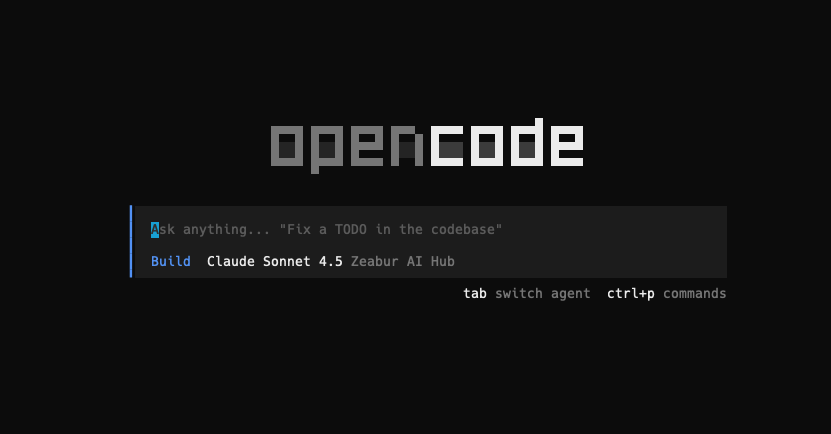
OpenCode is an open-source AI coding assistant designed to live in your terminal. Unlike proprietary tools that lock you into a specific model, OpenCode is **provider-agnostic**. This allows you to route your coding queries to OpenAI, Anthropic, or custom endpoints. Its flexibility makes it a favorite among developers who value privacy and data control over their codebase.
## What is Zeabur AI Hub?
**Zeabur** is a modern deployment platform that simplifies infrastructure for developers. The **Zeabur AI Hub** acts as a unified API gateway that aggregates various LLM providers (like OpenAI and Anthropic) into a single endpoint.
This unified infrastructure is versatile—it powers not just OpenCode, but also other advanced integrations like [**Codex**](https://zeabur.com/blogs/use-codex-with-ai-hub), ensuring you have a consistent experience across all your AI tools.
**Key Benefits of this Integration:**
- **Zeabur vs OpenAI API Pricing:** Instead of paying $20/month for ChatGPT Plus *and* $20/month for Claude Pro, you get a **pay-as-you-go Claude Sonnet 4.5** experience. You only pay for what you use.
- **Edge-Speed Latency:** Competitors often suffer from routing lag. Zeabur uses edge-routed endpoints in Tokyo and San Francisco to ensure your code completion is significantly faster.
- **Unified Access:** Stop juggling keys. Access multiple bleeding-edge models with a single API key.
## Step-by-Step Guide: Connecting OpenCode to Zeabur
Follow this tutorial to configure your environment in under 2 minutes.
### Prerequisites
1. **Install OpenCode CLI**:
Ensure you have the tool installed on your machine.
```bash
npm install -g opencode
```
2. **Zeabur Credentials**:
- Go to your Zeabur Dashboard to generate your **AI Hub API Key**.
3. **Choose your Endpoint**:
For the lowest latency, pick the endpoint closest to your location:
- **Asia (Tokyo):** `https://hnd1.aihub.zeabur.ai/`
- **US West (San Francisco):** `https://sfo1.aihub.zeabur.ai/`
---
## How to Configure OpenCode Provider
OpenCode uses a configuration file to manage custom providers. We will add Zeabur as a compatible provider to enable model switching.
### 1. Edit the Configuration File
Create or edit the OpenCode configuration file located at `~/.config/opencode/config.json`.
```bash
# Open the config file in your preferred editor
nano ~/.config/opencode/config.json
```
Paste the following configuration. **Note:** You can swap the `baseURL` for the US endpoint (`sfo1`) if you are in the Americas.
```json
{
"$schema": "",
"provider": {
"zeabur": {
"npm": "@ai-sdk/openai-compatible",
"name": "Zeabur AI Hub",
"options": {
"baseURL": ""
},
"models": {
"claude-sonnet-4-5": {
"name": "Claude Sonnet 4.5"
},
"claude-haiku-4-5": {
"name": "GPT-5-Codex"
},
"gpt-5":{
"name": "GPT 5"
}
}
}
}
}
```
Save the file (`Ctrl+O` -> `Enter`) and Exit (`Ctrl+X`).
### 2. Connect the CLI
Now that the configuration is set, you need to authenticate using the OpenCode CLI.
1. Run the tool:
```bash
opencode
```
2. Enter the connection command:
```bash
/connect
```
3. Select **Zeabur AI Hub** from the list of providers.
4. Paste your **Zeabur AI Hub API Key** when prompted.
---
## 🚀 Start Coding
You are now connected! You can switch between the latest models without changing API keys.
**Why developers are switching to this setup:**
- **Access Unreleased Power:** Transform your terminal into a **GPT-5 terminal coding assistant** instantly.
- **Cost Efficiency:** Enjoy **pay-as-you-go Claude Sonnet 4.5** access. If you don't code for a week, you pay $0.
- **Flexibility:** Switch from GPT to Claude mid-project to see which model solves your bug faster.
Happy Coding!