# yaml-language-server: $schema=https://schema.zeabur.app/template.json
apiVersion: zeabur.com/v1
kind: Template
metadata:
name: MCSManager
spec:
description: A modern, secure, and distributed control panel designed for managing Minecraft and Steam game servers.
icon: https://raw.githubusercontent.com/MCSManager/MCSManager/refs/heads/master/frontend/public/favicon.ico
variables:
- key: MCSM_Web_DOMAIN
type: DOMAIN
name: MCSM Web Domain
description: The domain name of MCSM Web.
- key: MCSM_Daemon_DOMAIN
type: DOMAIN
name: MCSM Daemon Domain
description: The domain name of MCSM Daemon.
readme: |-
# MCSManager (MCSM)
MCSManager has already gained a certain level of popularity within the community, specifically Minecraft. MCSManager excels in offering a centralized management solution for multiple server instances and provides a secure and reliable multi-user permission system. In addition, We are committed to supporting server administrators not only for Minecraft but also for Terraria and various Steam games. Our goal is to foster a thriving and supportive community for game server management.
MCSManager **supports English, French, German, Italian, Japanese, Portuguese, Simplified Chinese, and Traditional Chinese**, with plans to add support for more languages in the future!
Note: This template requires manual installation of the Java environment.
## Things to do after deployment
First, bind a domain name for both web and daemon. Then, open the web, go to the node page, and click on "Add Node."
The remote node IP address is wss://your.daemon.domain
The remote node port is 443.
Use Zeabur file management to open /opt/mcsm/daemon/data/Config/global.json to get the key.
Enter the key in the remote node key field and confirm to complete the process.
This template pre-opens 3 TCP ports, namely 25565, 25575, and 25585, along with one UDP port, 25595.
After you start a server on port 25565, you need to find the port named tcp1 in the daemon. You can join the server through this port.
## Screenshots
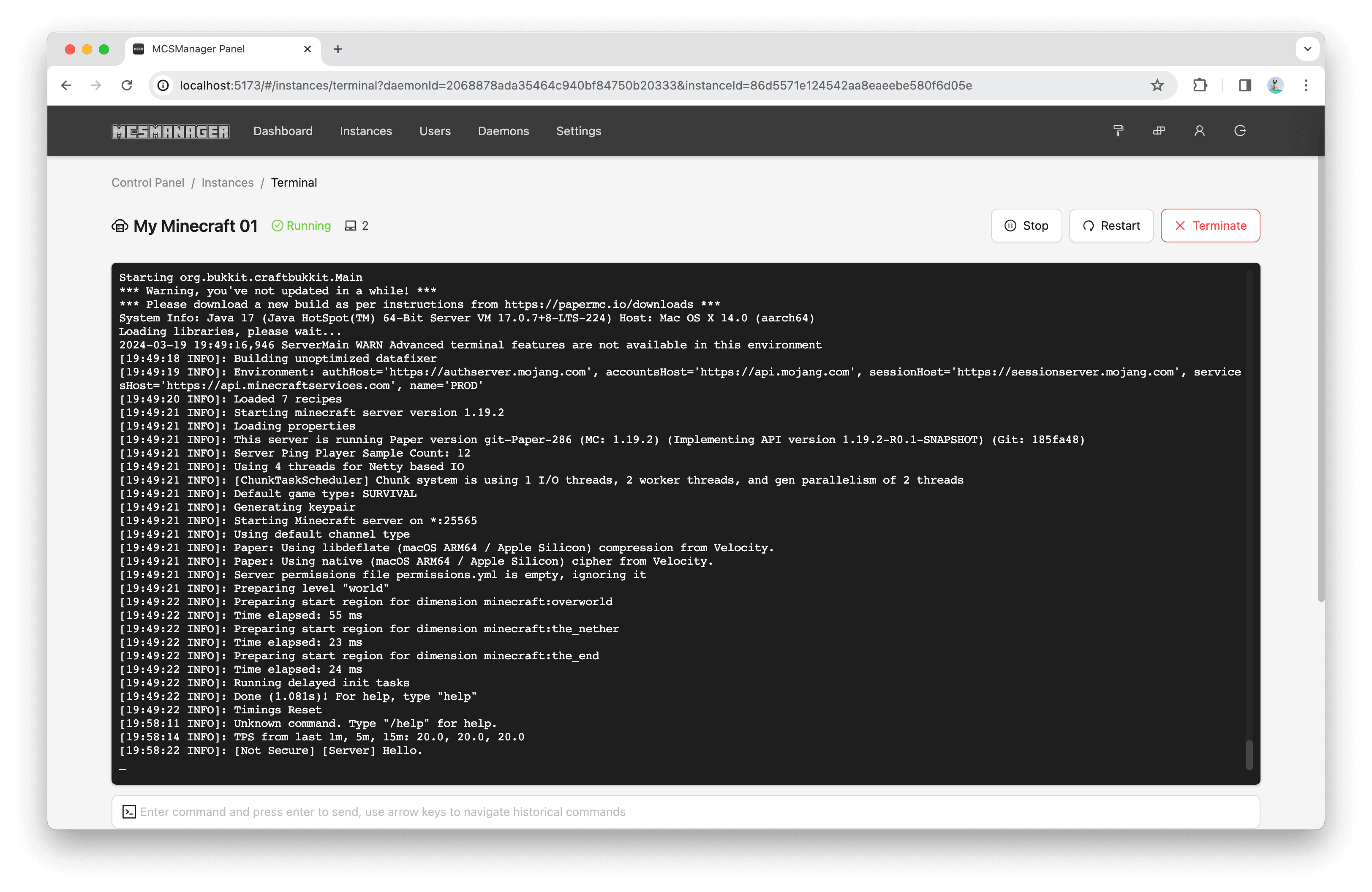
**Terminal**
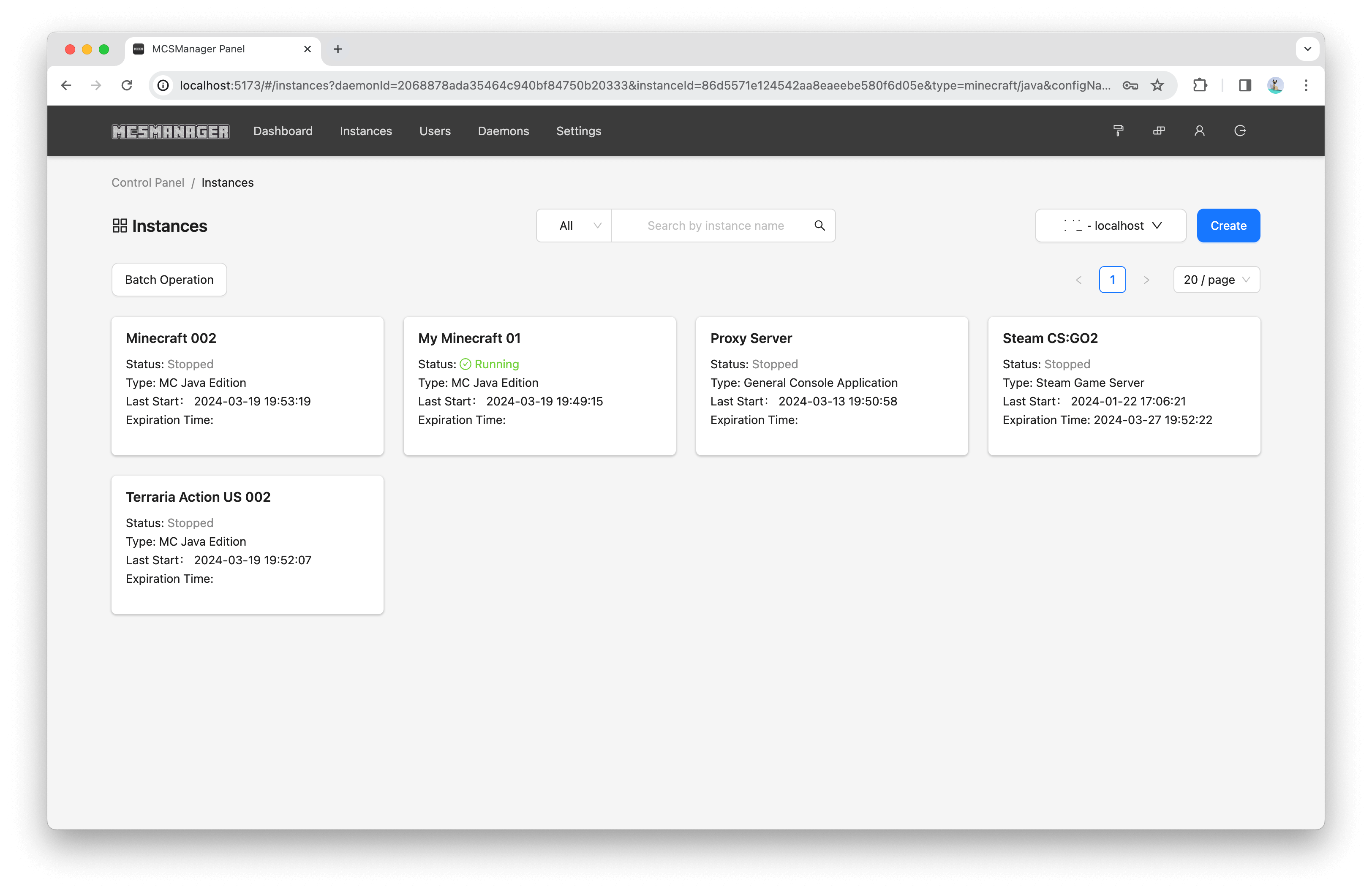
**Instance List**
**Custom Layout**

services:
- name: MCSM Web
icon: https://raw.githubusercontent.com/MCSManager/MCSManager/refs/heads/master/frontend/public/favicon.ico
template: PREBUILT_V2
spec:
source:
image: githubyumao/mcsmanager-web:latest
ports:
- id: web
port: 23333
type: HTTP
volumes:
- id: data
dir: /opt/mcsmanager/web/data
- id: logs
dir: /opt/mcsmanager/web/logs
domainKey: MCSM_Web_DOMAIN
- name: MCSM Daemon
icon: https://raw.githubusercontent.com/MCSManager/MCSManager/refs/heads/master/frontend/public/favicon.ico
template: PREBUILT_V2
spec:
source:
image: githubyumao/mcsmanager-daemon:latest
ports:
- id: daemon
port: 24444
type: HTTP
- id: tcp1
port: 25565
type: TCP
- id: tcp2
port: 25575
type: TCP
- id: tcp3
port: 25585
type: TCP
- id: udp1
port: 25595
type: UDP
volumes:
- id: data
dir: /opt/mcsmanager/daemon/data
- id: logs
dir: /opt/mcsmanager/daemon/logs
- id: docker-sock
dir: /var/run/docker.sock
- id: java
dir: /opt/java
configs:
- path: /root/.bashrc
template: "# ~/.bashrc: executed by bash(1) for non-login shells.\r\n\r\n# Note: PS1 and umask are already set in /etc/profile. You should not\r\n# need this unless you want different defaults for root.\r\n# PS1='${debian_chroot:+($debian_chroot)}\\h:\\w\\$ '\r\n# umask 022\r\n\r\n# You may uncomment the following lines if you want `ls' to be colorized:\r\n# export LS_OPTIONS='--color=auto'\r\n# eval \"$(dircolors)\"\r\n# alias ls='ls $LS_OPTIONS'\r\n# alias ll='ls $LS_OPTIONS -l'\r\n# alias l='ls $LS_OPTIONS -lA'\r\n#\r\n# Some more alias to avoid making mistakes:\r\n# alias rm='rm -i'\r\n# alias cp='cp -i'\r\n# alias mv='mv -i'\r\n\r\n# 设置Java环境变量\r\nexport JAVA_HOME=/opt/java/zulu21.38.21-ca-jdk21.0.5-linux_x64\r\nexport PATH=$JAVA_HOME/bin:$PATH\r\n\r\n"
permission: null
envsubst: null
domainKey: MCSM_Daemon_DOMAIN
localization:
zh-CN:
description: 一款免费,开源,分布式,轻量级,快速部署,支持 Minecraft 和 Steam 游戏服务器的 Web 管理面板。
readme: |
# MCSManager (MCSM)
一款免费,开源,分布式,轻量级,快速部署,支持 Minecraft 和 Steam 游戏服务器的 Web 管理面板。
此软件在 `Minecraft` 和其他游戏社区内中已有一定的流行程度,它可以帮助你集中管理多个物理服务器,实现在任何主机上创建游戏服务器,并且提供安全可靠的多用户权限系统,可以很轻松的帮助你管理多个服务器,一直在为 `Minecraft`,`Terraria` 和 `Steam` 游戏服务器的管理员,运维人员和个人开发者提供健康的软件支持。
注意,此模板需要手动安装Java环境
## 部署完成后要做的事情
首先为web和daemon各绑定一个域名,然后打开web,进入节点页面,点击新增节点。
远程节点IP地址为wss://your.daemon.domian
远程节点端口为443
通过Zeabur文件管理打开/opt/mcsm/daemon/data/Config/global.json获取key
在远程节点密钥中填入key然后确定即可
本模板预开放3个TCP端口分别是25565,25575,25585,以及1个UDP端口25595
当你开启一个25565端口的服务器之后,你需要在Daemon中找到名为tcp1的端口,通过这个端口即可加入服务器。
## 示例图片
**终端**

**实例列表**

**自定义布局**

zh-TW:
description: 一款免費,開源,分散式,輕量級,快速部署,支援 Minecraft 和 Steam 遊戲伺服器的 Web 管理面板。
readme: |-
# MCSManager (MCSM)
一款免費,開源,分散式,輕量級,快速部署,支援 Minecraft 和 Steam 遊戲伺服器的 Web 管理面板。
此軟體在 `Minecraft` 和其他遊戲社群內中已有一定的流行程度,它可以幫助你集中管理多個實體伺服器,實現在任何主機上建立遊戲伺服器,並且提供安全可靠的多使用者權限系統,可以很輕鬆的幫助你管理多個伺服器,一直在為 `Minecraft`,`Terraria` 和 `Steam` 遊戲伺服器的管理員,維護人員和個人開發者提供健康的軟體支援。
注意,此模板需要手動安裝Java環境。
## 部署完成後要做的事情
首先為web和daemon各綁定一個域名,然後打開web,進入節點頁面,點擊新增節點。
遠程節點IP地址為wss://your.daemon.domain
遠程節點端口為443
通過Zeabur文件管理打開/opt/mcsm/daemon/data/Config/global.json獲取key
在遠程節點密鑰中填入key然後確定即可
本模板預開放3個TCP端口,分別是25565、25575、25585,以及一個UDP端口25595。
當你開啟一個25565端口的伺服器之後,你需要在daemon中找到名為tcp1的端口,通過這個端口即可加入伺服器。
## 範例圖片
**終端**

**實例列表**

**自定義佈局**
