# yaml-language-server: $schema=https://schema.zeabur.app/template.json
apiVersion: zeabur.com/v1
kind: Template
metadata:
name: LINE Namecard Bot
spec:
description: LINE Bot Gemini Pro Vision 名片機器人,透過 Notion 當你的 Database
variables:
- key: ChannelAccessToken
type: STRING
name: Line Channel Access Token
description: Line 機器人密鑰,請到 Developers Console 申請一個。
- key: ChannelSecret
type: STRING
name: Line Channel Secret
description: Line 機器人密鑰,請到 Developers Console 拿一個
- key: GOOGLE_GEMINI_API_KEY
type: STRING
name: Gemini API key
description: Google 的 Gemini 模型的 API key,需要填寫才可以使用圖像識別。
- key: NOTION_INTEGRATION_TOKEN
type: STRING
name: Notion Integration Token
description: Notion 的 token,需要填寫才可以讓機器人把掃描結果寫入你的 Notion。
tags:
- Bot
- Tool
readme: "LINE Bot 使用 Google Gemini Pro 跟 Notion DB 來做的名片小幫手\n\n\n\n## 事前準備\n\n- [LINE Developers 帳號](https://developers.line.biz/console/)\n - 到 [LINE Developers Console](https://developers.line.biz/console/) 透過你的 LINE 帳號登入。\n - 開啟 LINE Developers 帳號\n - 開啟一個官方帳號 Message API Channel 並且取得 `channel secret` 與 `channel access token`。 請[參考這篇教學](https://developers.line.biz/en/docs/messaging-api/getting-started/#using-console)。\n- 需要一個 [Google Cloud Platform](https://cloud.google.com/) 帳號,並且取得 GCP JSON key file ,更多詳細流程請參考 [Cloud Storage client libraries](https://cloud.google.com/storage/docs/reference/libraries)。\n\n## 填寫參數說明\n\n### ChannelAccessToken\n\n請到 LINE Developers Console issue 一個。\n\n### ChannelSecret\n\n請到 LINE Developers Console 拿一個。\n\n### GOOGLE_GEMINI_API_KEY\n\n必須透過 [Google Gemini API Keys](https://makersuite.google.com/app/apikey) 來取得。\n\n\n### NOTION_INTEGRATION_TOKEN\n\n取得 Notion Integration Token,請參考[官方文件(https://developers.notion.com/docs/create-a-notion-integration)]。 記得要讓 [Notion 頁面取得 Integration 權限](https://developers.notion.com/docs/create-a-notion-integration#give-your-integration-page-permissions) ,參考以下圖片。\n\n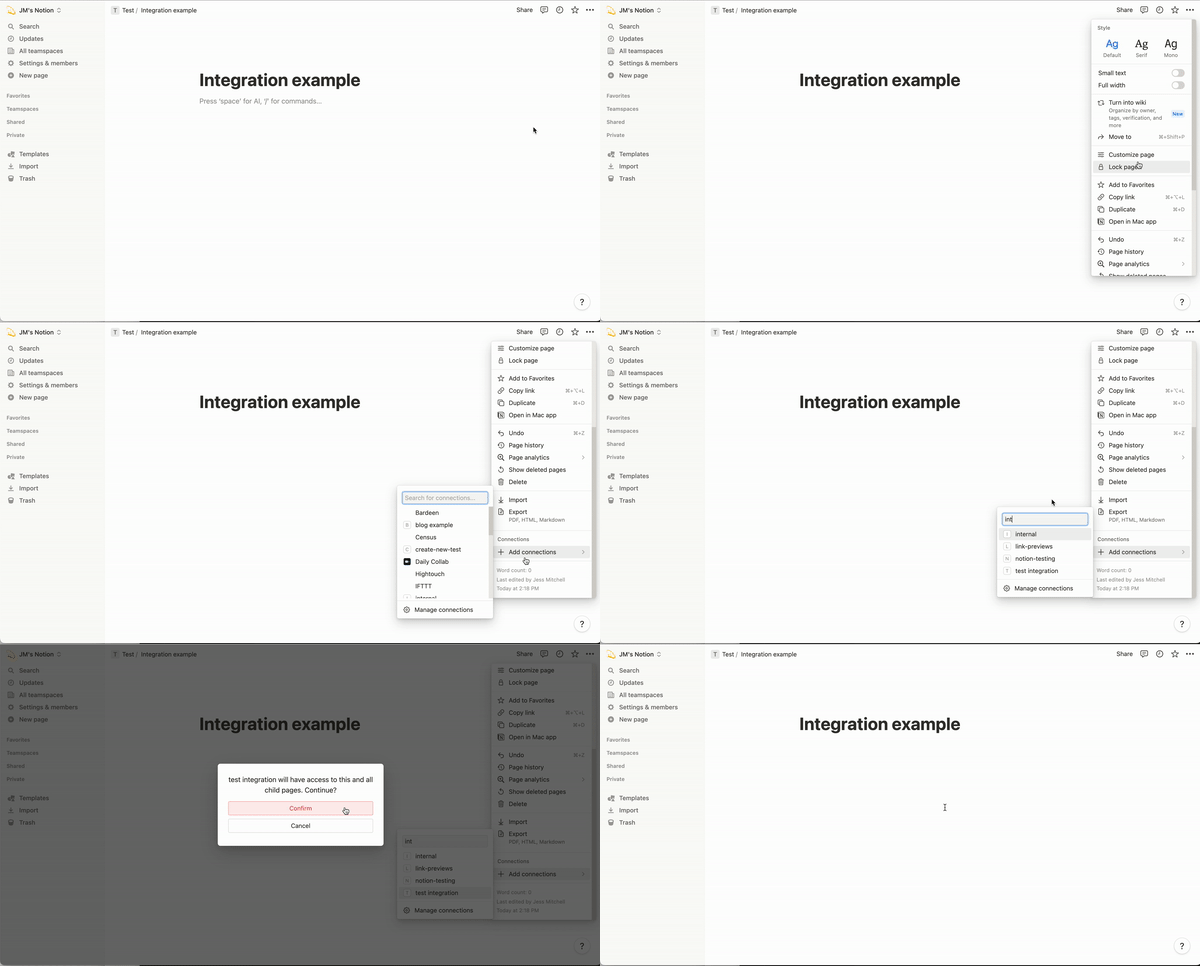\n\n### NOTION_DB_PAGEID\n\nNotion DB 的頁面網址應該是 `https://www.notion.so/b764xxxxxa?v=dexxxx1` 那麼 `b764xxxxxa`就是你的 DatabasePageId。\n\n## Line 平台設定\n\n請到 LINE 官方帳號的平台,到了右上角的「設定」中,選擇「帳號設定」\n\n將你官方帳號基本資料設定好,並且打開加入群組功能。\n\n- 到回應設定,將以下設定改好:\n 1. 回應模式改成「聊天機器人」\n 2. 停用「自動回應訊息」\n 3. 啟用「Webhook」\n\n- 到 Messaging API 選項,將 Webhook 網址填入`: https://{你取的名字}.zeabur.app/callback\n \n### 如何使用\n\n- **傳送名片照片:** 會自動透過 Gemini Pro 辨識之後,將結果上傳到 Notion DB.\n\n### 完整開發教學\n\n- [[Golang\\] 透過 Google Gemini Pro 來打造一個基本功能 LLM LINE Bot](https://www.evanlin.com/til-gogle-gemini-pro-linebot/)\n"
services:
- name: linebot
template: GIT
spec:
source:
source: GITHUB
repo: 743066087
branch: main
env:
ZBPACK_SERVERLESS:
default: "1"