

Zeabur AI Hub + OpenCode: Pay-As-You-Go AI Coding
Stop paying monthly subscriptions. Connect OpenCode to Zeabur AI Hub to access GPT-5 and Claude 4.5 in your terminal with a unified pay-as-you-go API.
 Kyle Chung
This article is also available in 繁體中文, 简体中文, 日本語, Español, and Bahasa Indonesia.
Imagine a tool as powerful as Claude Code, but with the ability to switch models from GPT-5 to Claude Sonnet 4.5 instantly—without manually managing multiple subscriptions and API keys.
OpenCode has emerged as the premier OpenCode CLI for developers who want a GPT-5 terminal coding assistant. However, configuring it effectively requires the right infrastructure. By integrating Zeabur AI Hub, developers can unlock a flexible model that provides access to top-tier LLMs without the burden of fixed monthly fees.
In this article, we will explain what the OpenCode CLI and Zeabur AI Hub are, and guide you through the setup process to get a unified LLM API key for developers.
What is OpenCode?
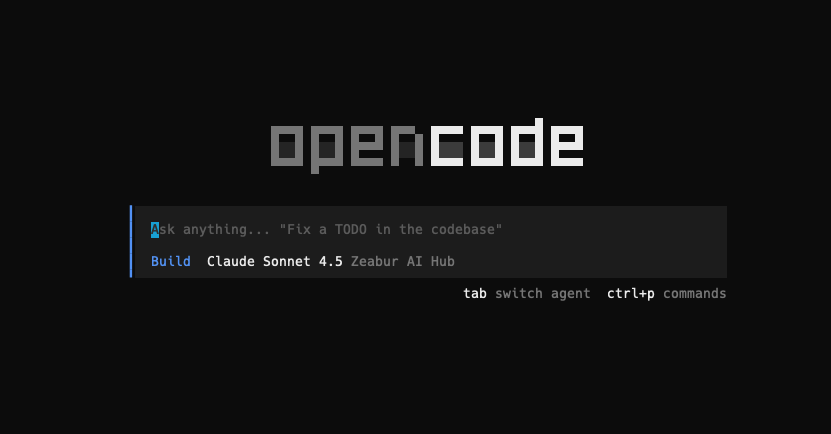
OpenCode is an open-source AI coding assistant designed to live in your terminal. Unlike proprietary tools that lock you into a specific model, OpenCode is provider-agnostic. This allows you to route your coding queries to OpenAI, Anthropic, or custom endpoints. Its flexibility makes it a favorite among developers who value privacy and data control over their codebase.
What is Zeabur AI Hub?
Zeabur is a modern deployment platform that simplifies infrastructure for developers. The Zeabur AI Hub acts as a unified API gateway that aggregates various LLM providers (like OpenAI and Anthropic) into a single endpoint.
This unified infrastructure is versatile—it powers not just OpenCode, but also other advanced integrations like Codex, ensuring you have a consistent experience across all your AI tools.
Key Benefits of this Integration:
- Zeabur vs OpenAI API Pricing: Instead of paying $20/month for ChatGPT Plus and $20/month for Claude Pro, you get a pay-as-you-go Claude Sonnet 4.5 experience. You only pay for what you use.
- Edge-Speed Latency: Competitors often suffer from routing lag. Zeabur uses edge-routed endpoints in Tokyo and San Francisco to ensure your code completion is significantly faster.
- Unified Access: Stop juggling keys. Access multiple bleeding-edge models with a single API key.
Step-by-Step Guide: Connecting OpenCode to Zeabur
Follow this tutorial to configure your environment in under 2 minutes.
Prerequisites
-
Install OpenCode CLI: Ensure you have the tool installed on your machine.
bashnpm install -g opencode -
Zeabur Credentials:
- Go to your Zeabur Dashboard to generate your AI Hub API Key.
-
Choose your Endpoint: For the lowest latency, pick the endpoint closest to your location:
- Asia (Tokyo):
https://hnd1.aihub.zeabur.ai/ - US West (San Francisco):
https://sfo1.aihub.zeabur.ai/
- Asia (Tokyo):
How to Configure OpenCode Provider
OpenCode uses a configuration file to manage custom providers. We will add Zeabur as a compatible provider to enable model switching.
1. Edit the Configuration File
Create or edit the OpenCode configuration file located at ~/.config/opencode/config.json.
# Open the config file in your preferred editor
nano ~/.config/opencode/config.json
Paste the following configuration. Note: You can swap the baseURL for the US endpoint (sfo1) if you are in the Americas.
{
  "$schema": "<https://opencode.ai/config.json>",
  "provider": {
    "zeabur": {
      "npm": "@ai-sdk/openai-compatible",
      "name": "Zeabur AI Hub",
      "options": {
        "baseURL": "<https://hnd1.aihub.zeabur.ai/>"
      },
      "models": {
        "claude-sonnet-4-5": {
          "name": "Claude Sonnet 4.5"
        },
        "claude-haiku-4-5": {
          "name": "GPT-5-Codex"
        },
        "gpt-5":{
            "name": "GPT 5"
        }
      }
    }
  }
}
Save the file (Ctrl+O -> Enter) and Exit (Ctrl+X).
2. Connect the CLI
Now that the configuration is set, you need to authenticate using the OpenCode CLI.
-
Run the tool:
bashopencode -
Enter the connection command:
bash/connect -
Select Zeabur AI Hub from the list of providers.
-
Paste your Zeabur AI Hub API Key when prompted.
🚀 Start Coding
You are now connected! You can switch between the latest models without changing API keys.
Why developers are switching to this setup:
- Access Unreleased Power: Transform your terminal into a GPT-5 terminal coding assistant instantly.
- Cost Efficiency: Enjoy pay-as-you-go Claude Sonnet 4.5 access. If you don't code for a week, you pay $0.
- Flexibility: Switch from GPT to Claude mid-project to see which model solves your bug faster.
Happy Coding!