Using Zeabur AI Hub in n8n
n8n is a powerful workflow automation tool that supports integration with various AI models. This tutorial uses OpenAI models as an example to demonstrate how to use Zeabur AI Hub’s API in n8n. The process is similar for other models.
Prerequisites
Before you begin, make sure you have:
- Deployed n8n service on Zeabur (you can use the n8n template for quick deployment)
- Added credits to Zeabur AI Hub
- Created an API key
Setting Up OpenAI Credentials
Step 1: Add Credentials
- Open your n8n interface
- Click “Credentials” in the top right corner
- Click ”+ Add Credential”
- Search and select “OpenAI”
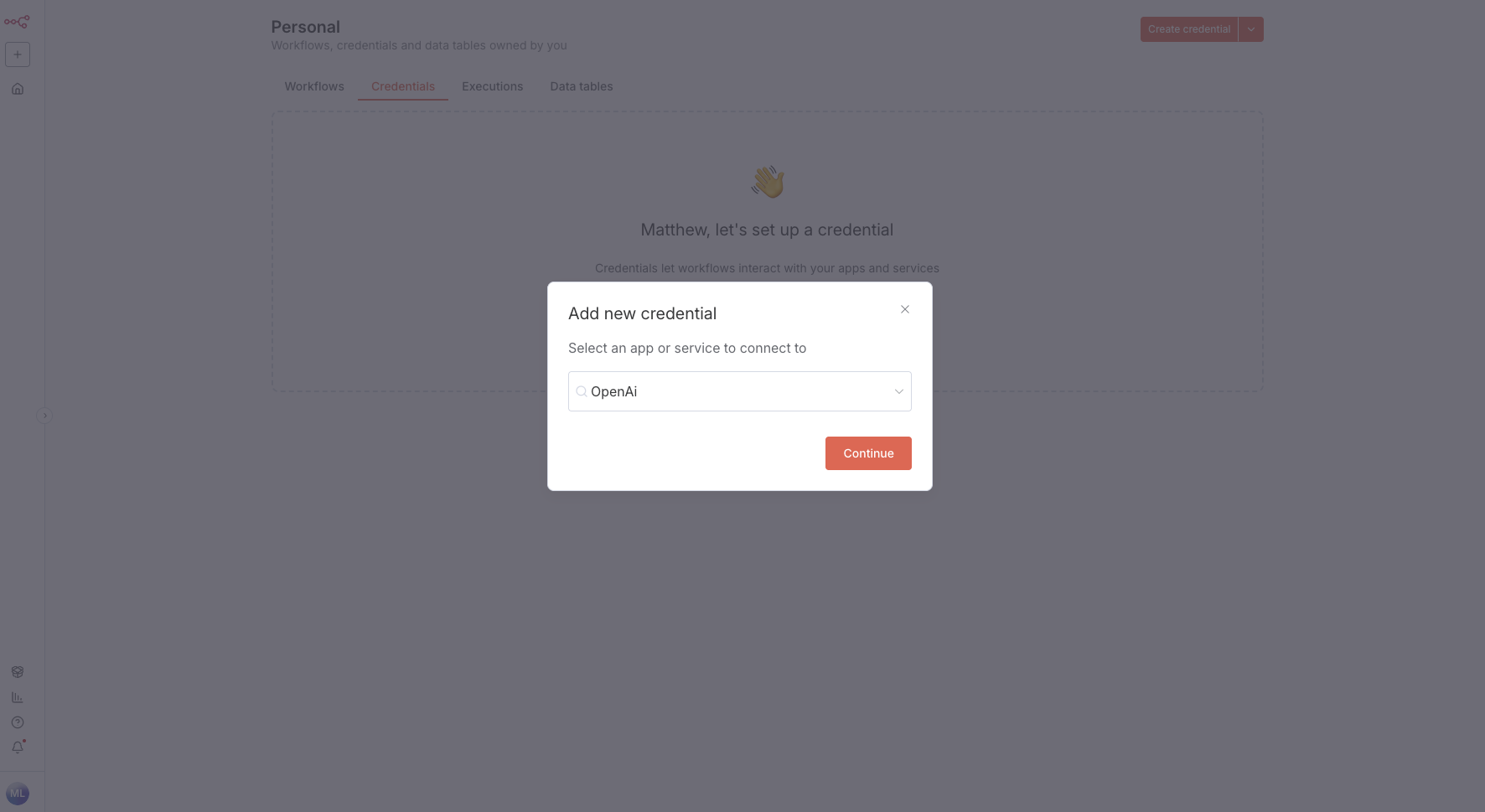
Step 2: Configure API Key and Base URL
In the credential settings page:
- API Key: Paste the API key you created in AI Hub
- Base URL: Enter the Zeabur AI Hub endpoint
https://hnd1.aihub.zeabur.ai/v1Or choose other regional endpoints based on your needs:
- HND1 - Tokyo, Japan:
https://hnd1.aihub.zeabur.ai/v1 - SFO1 - San Francisco, USA:
https://sfo1.aihub.zeabur.ai/v1
- Click “Save”
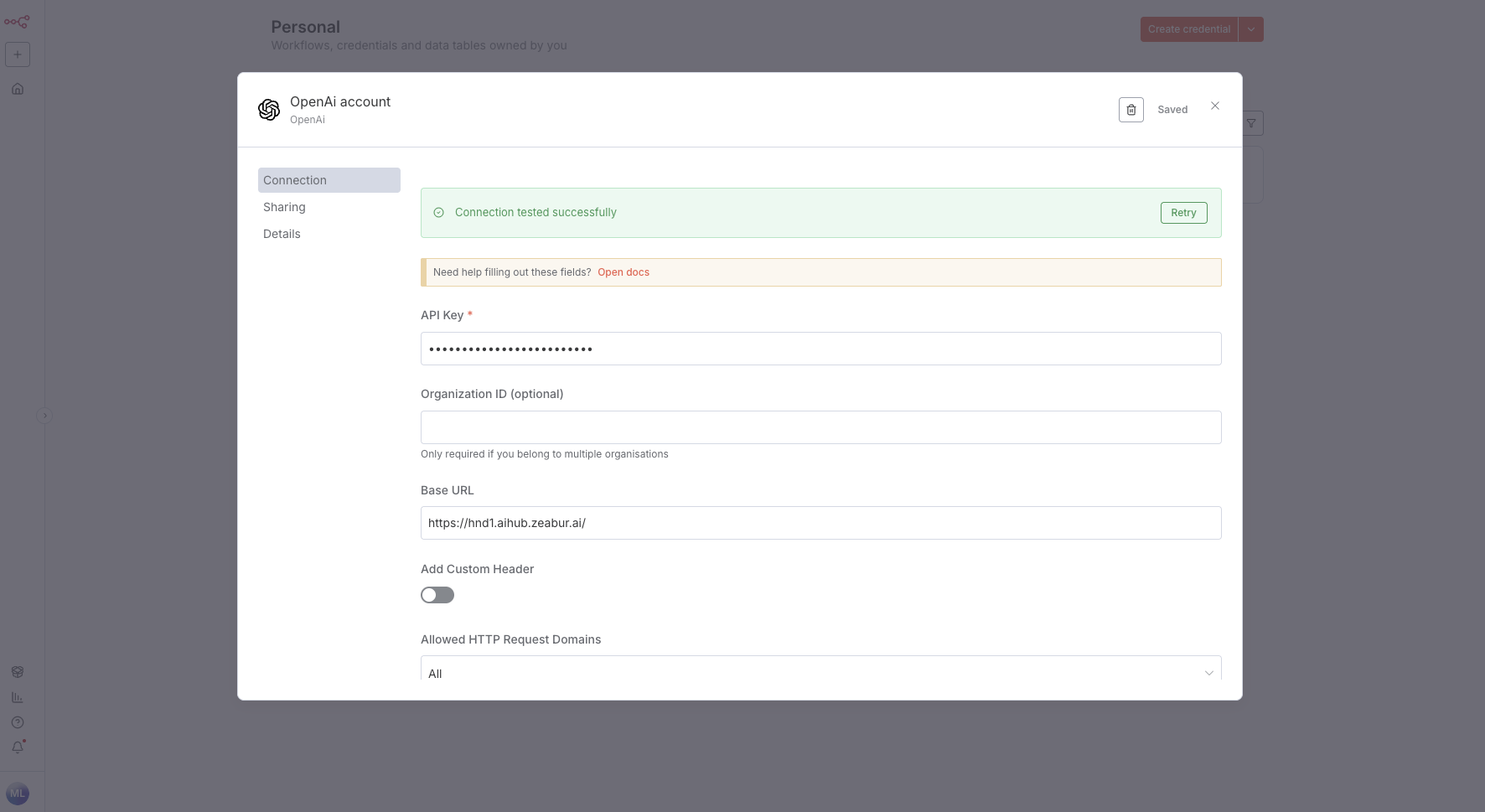
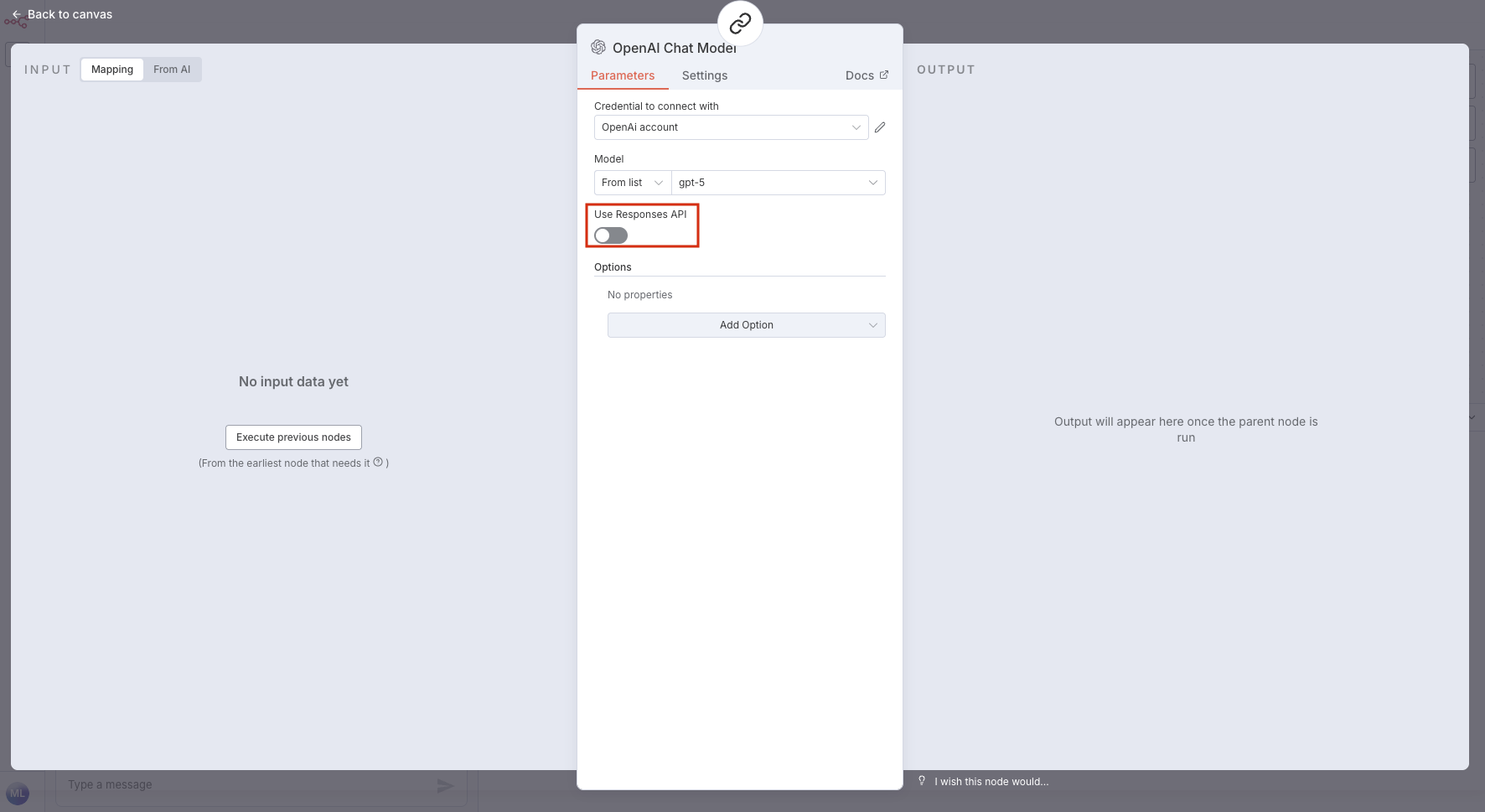
Step 3: Bind Credentials to Workflow Node and Disable Use Responses API
- Add a node that uses AI in your workflow (e.g., OpenAI Chat Model)
- In “Credential to connect with”, select the credential you just created
- Find the “Use Responses API” option and turn it off
⚠️
When using Zeabur AI Hub, make sure to disable the “Use Responses API” feature, otherwise API calls may fail.
Step 4: Test Connection
After configuration, run the workflow to verify the settings. If configured correctly, you should see a successful AI response.
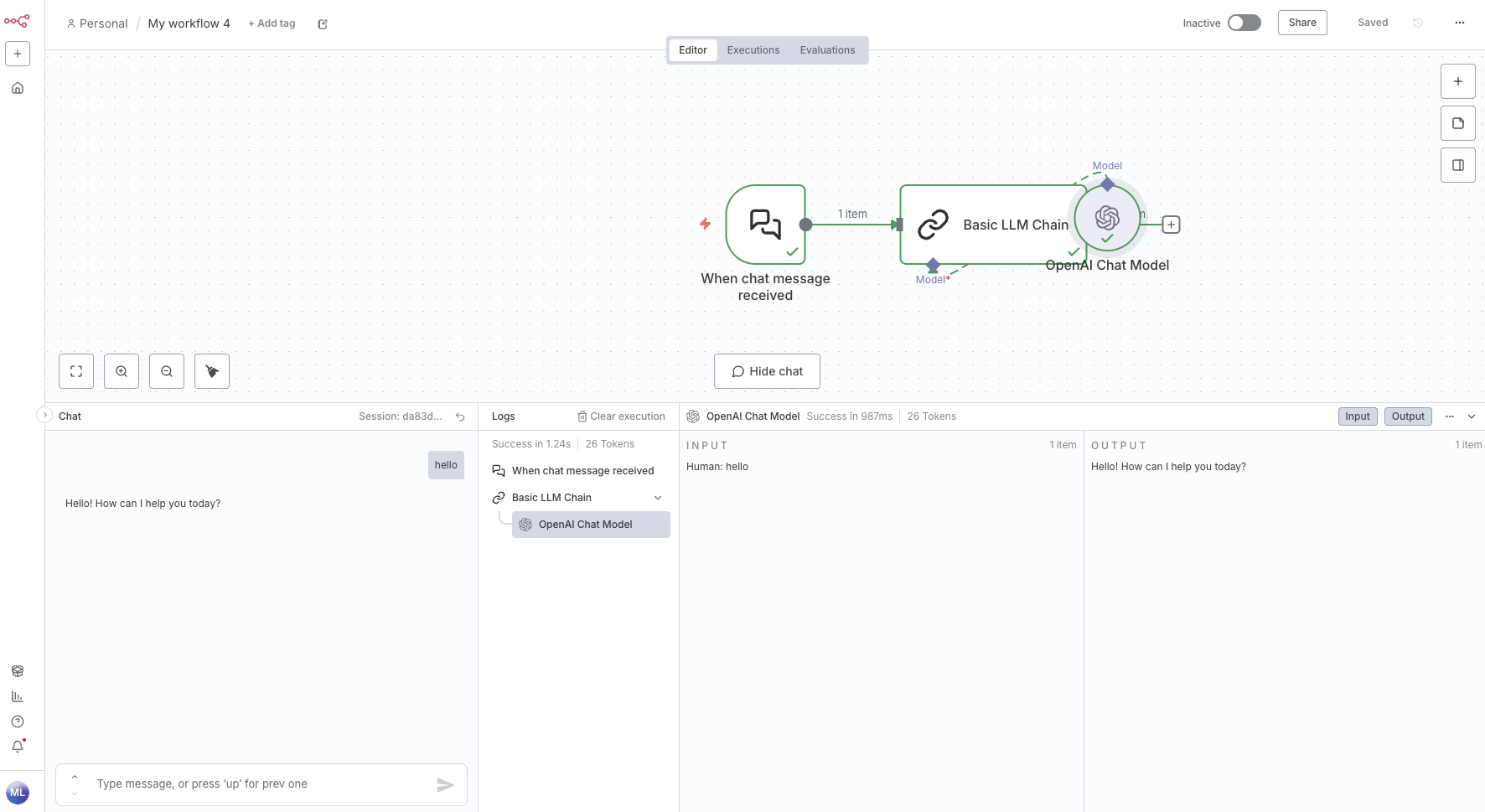
If errors occur, check:
- API key is correct (no extra spaces)
- Base URL is correctly configured
- “Use Responses API” is disabled
- Zeabur AI Hub account has sufficient credits