Create Service
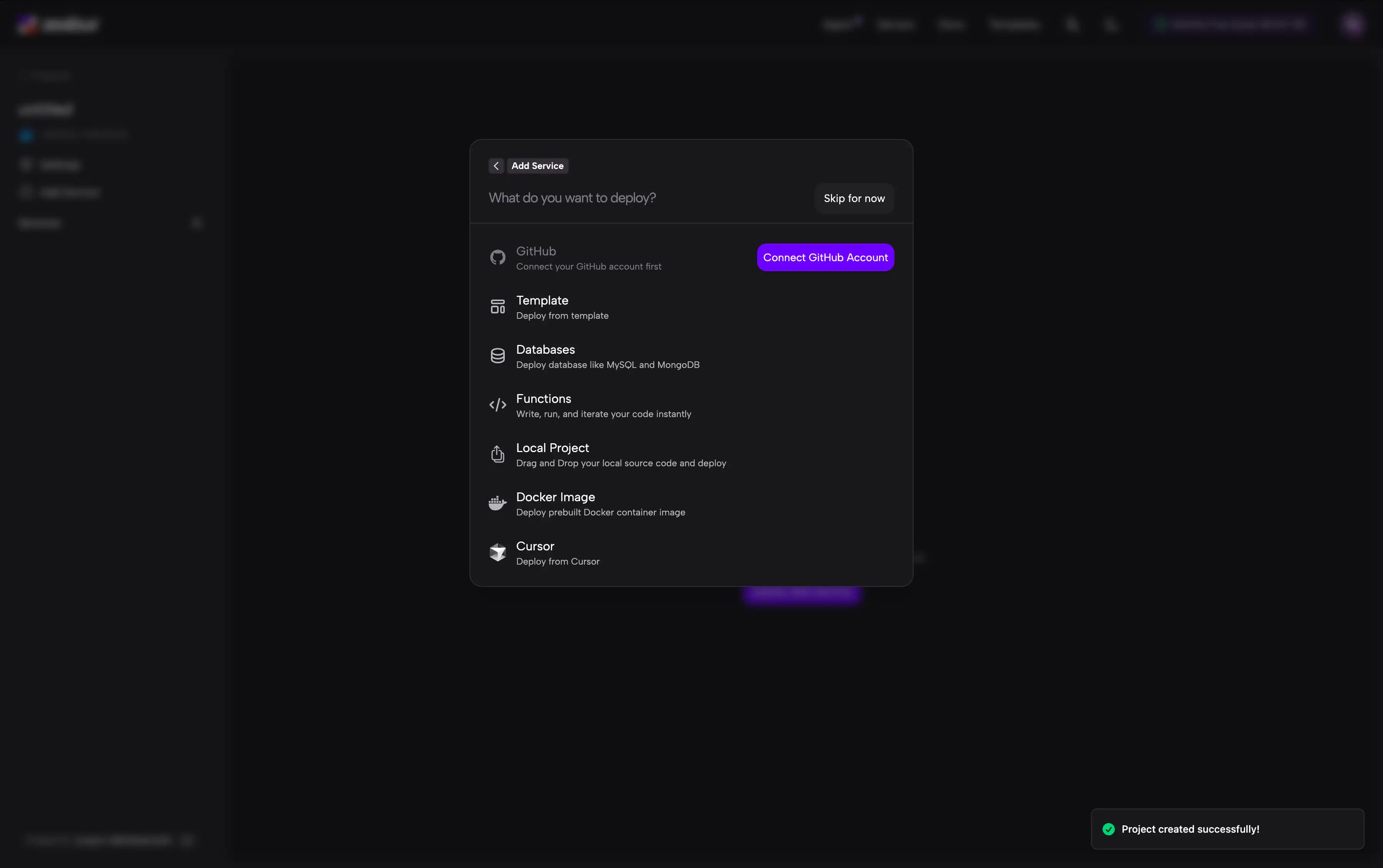
After creating a project, you can start deploying services. Click the Deploy New Service button (or press CMD + K / Ctrl + K and select Deploy New Service), and you’ll see a menu with various deployment options:
Template
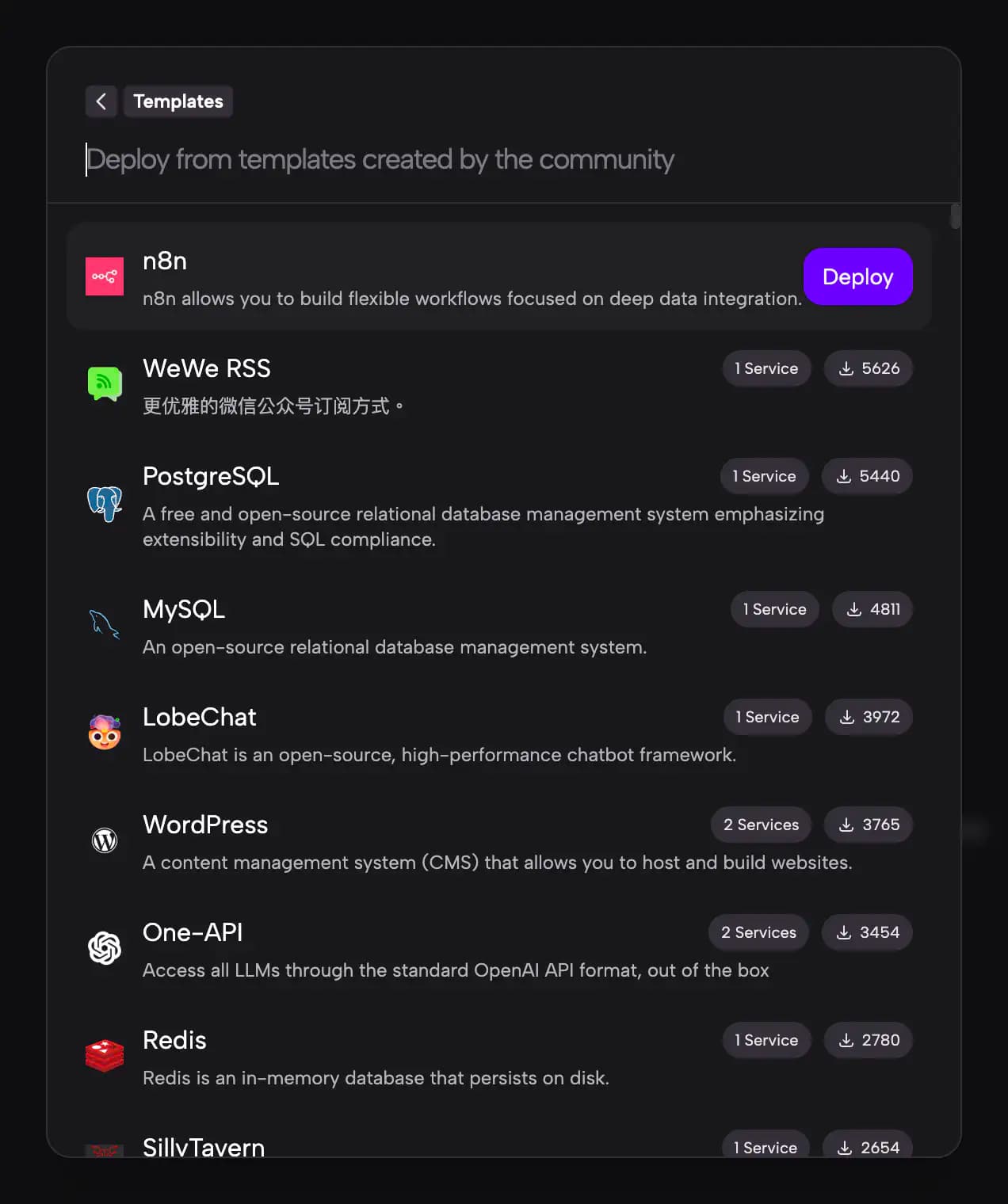
Zeabur provides a rich library of pre-configured templates for popular open-source projects like WordPress, n8n, Ghost, and many more. These templates are ready to deploy with one click.
- Click Template to browse available templates.
- Search or browse for the template you need.
- Click on the template and follow the prompts to deploy.
For more details, see Deploy from Template.
GitHub
Deploy directly from your GitHub repository. This is the most common way to deploy your own applications.
- Click GitHub to connect your GitHub account if you haven’t already.
- Once connected, search for the repository you want to deploy.
- Click on the repository, and Zeabur will automatically analyze your code and select the most suitable build method.
- Click Deploy to start the deployment.

For more details, see Integrating with GitHub.
Databases
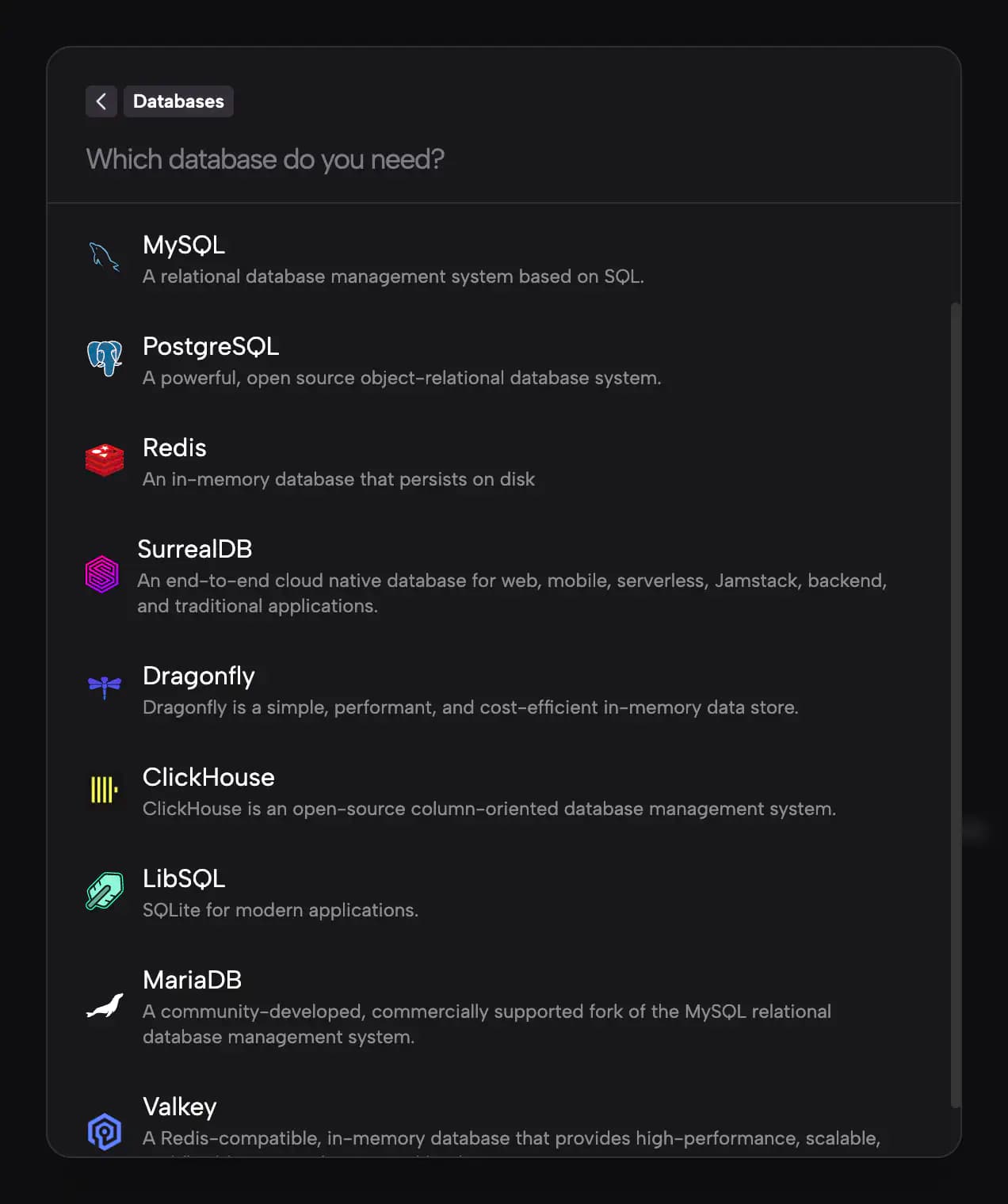
Quickly deploy common databases without any configuration.
- Click Databases to see the list of available databases.
- Select the database you need (PostgreSQL, MySQL, MongoDB, Redis, etc.).
- The database will be deployed instantly and ready to use.
Functions
Write, run, and iterate your code instantly with Zeabur Functions. This is perfect for quick scripts, APIs, or serverless functions.
- Click Functions to create a new function.
- Choose between JavaScript or Python as your function language.
- Write your code directly in the editor.
- Your function will be deployed and accessible via the dashboard.

Local Project
Upload your local source code directly to Zeabur without needing a Git repository.
- Click Local Project.
- Drag and drop your project folder, or click to browse and select your folder.
- Zeabur will analyze and deploy your project.

This is useful for quick deployments or when you don’t want to push your code to a repository first.
The /dist/* directory will be automatically ignored during upload.
Docker Image
Deploy any prebuilt Docker container image from Docker Hub or other container registries.
- Click Docker Image.
- Enter the image name (e.g.,
nginx:latestorghcr.io/owner/image:tag). - Configure any required environment variables or ports.
- Click Deploy.
For more details, see Deploy with Docker Image.
Cursor
Deploy directly from the Cursor IDE using the Zeabur extension.
- Click Cursor to open the Cursor IDE with your project.
- If you haven’t installed the Zeabur extension, you’ll be prompted to install it.
- Use the extension to deploy your current project directly from Cursor.
This provides a seamless experience for developers who use Cursor as their primary IDE.