GitHub Integration
Zeabur provides GitHub integration capabilities, allowing you to link your GitHub account with your Zeabur account. This enables you to log in to Zeabur using GitHub and deploy code directly from GitHub to Zeabur.
Deploying code with GitHub enables out-of-the-box CI/CD functionality for your services, and simply pushing code to GitHub will trigger Zeabur to automatically deploy the new code.
Linking Your GitHub Account
If you registered your Zeabur account using an email address, you’ll need to first link your GitHub account to your Zeabur account. You can complete this linking in the Console > Settings > Integrations.
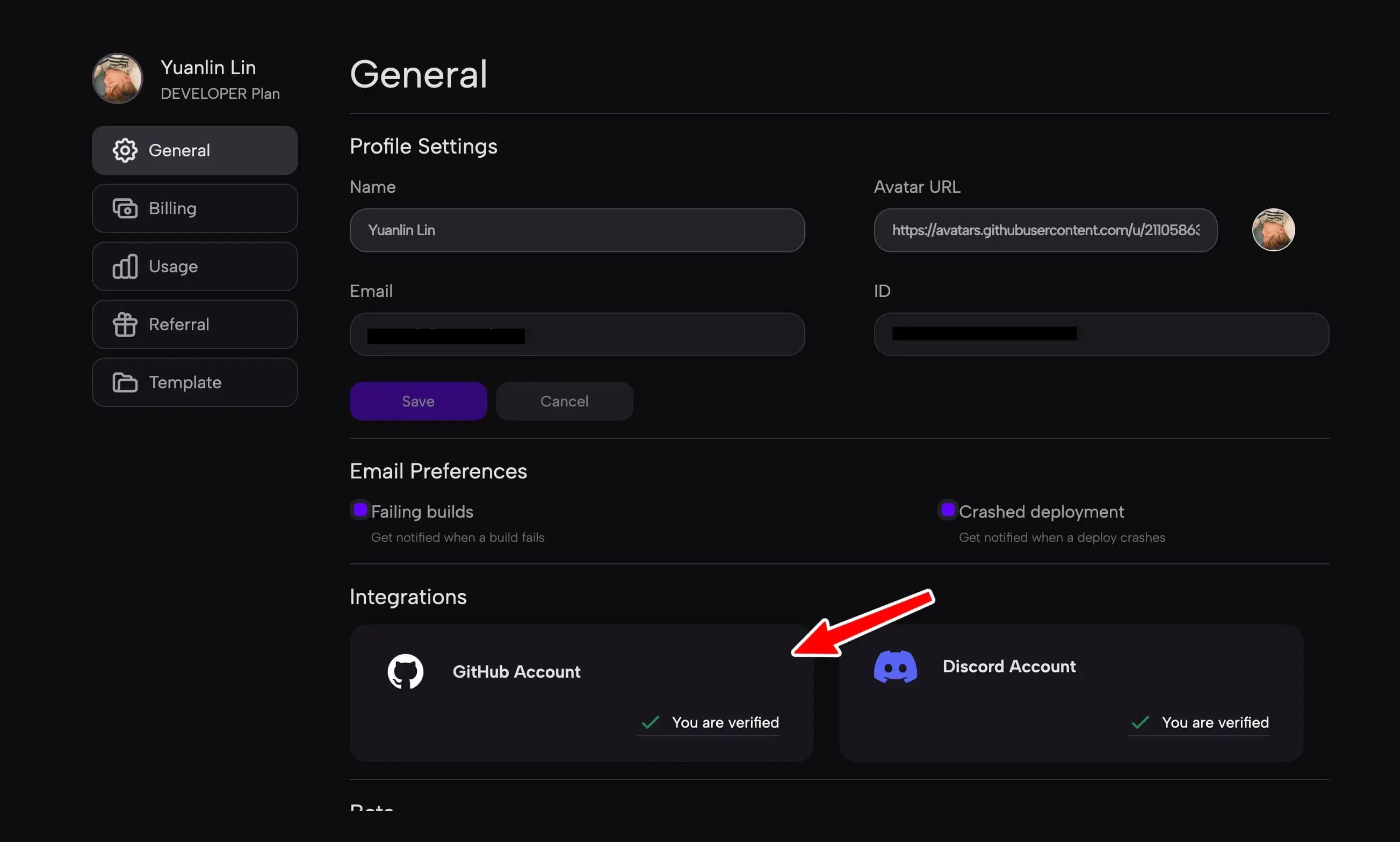
Please note that one GitHub account can only be linked to one Zeabur account. Once linked, you can use the GitHub button on the Zeabur login page to sign in.
Setting Up GitHub Apps
To make your personal or organizational repositories available for selection on Zeabur, install the Zeabur application on GitHub. This allows Zeabur to access your repositories. When creating a service, select the “GitHub” service type and click the “Configure GitHub” button. This action will direct you to the GitHub application installation page. Follow the prompts on the page to install the Zeabur App on your personal account or a specific organization.
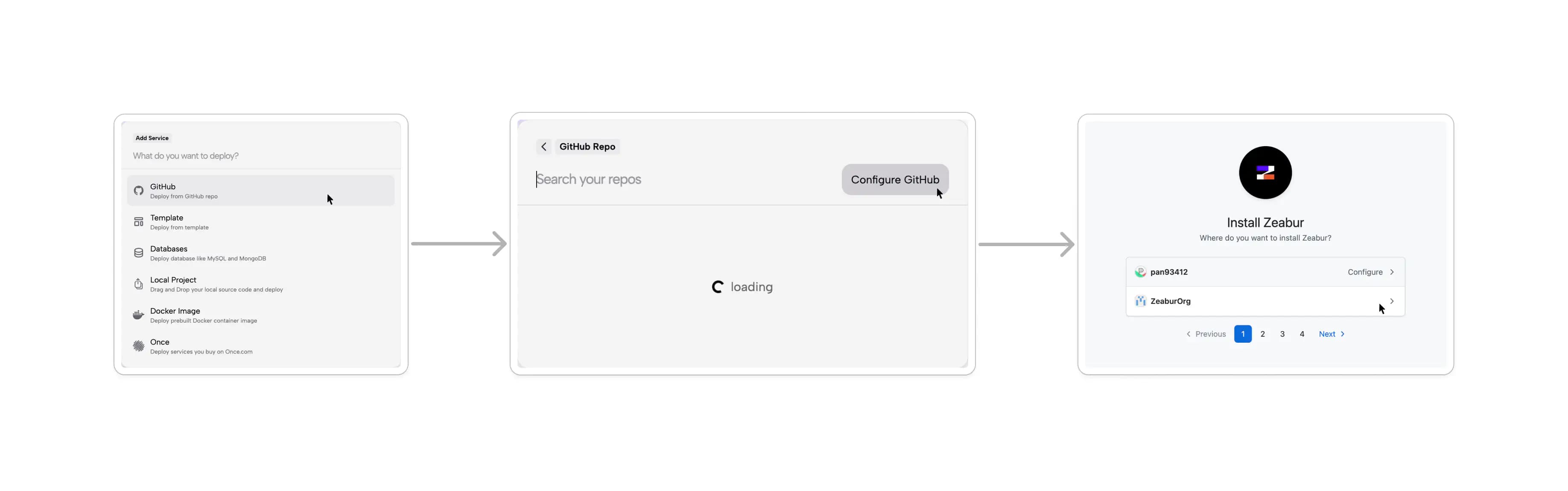
If you are a Member or an Outside Collaborator of the current organization (not an Owner), you may not have sufficient permissions to link that organization. However, you can still read all repositories you have access to, and the GitHub authorization page will show that you have already configured that repository.
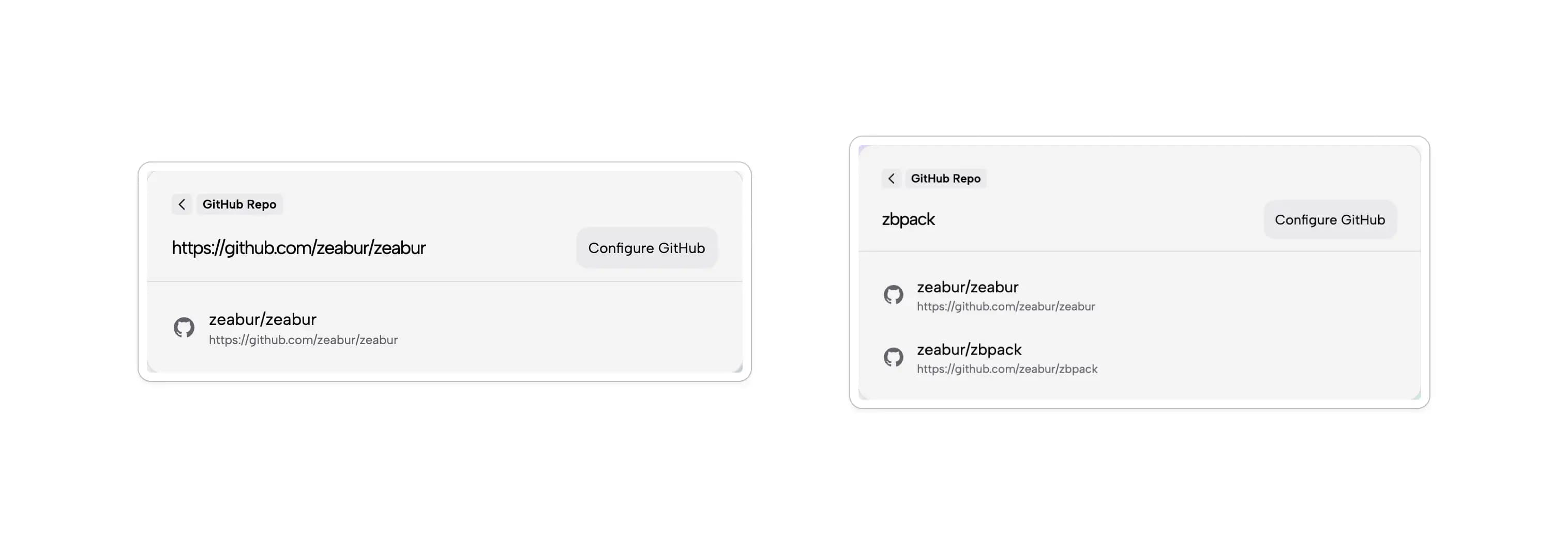
After completing the authorization, you will see a search box. Enter the name of the repository you want to deploy (or the GitHub URL) to deploy it.
Removing GitHub Apps
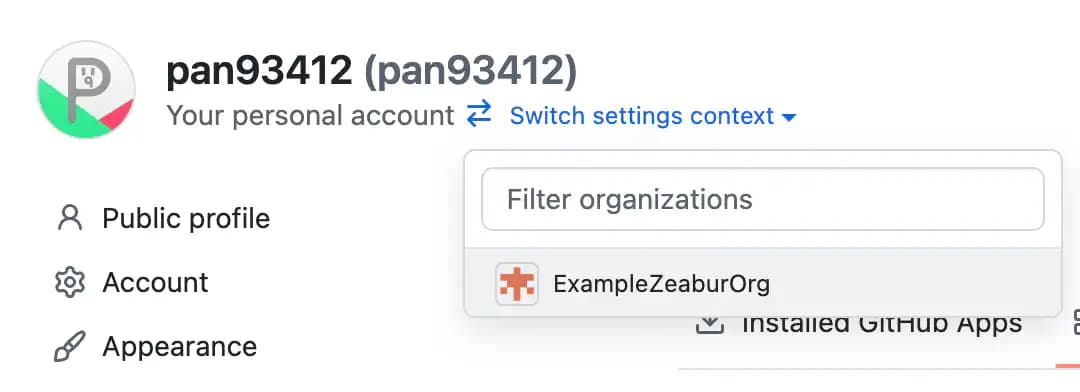
If you need to completely remove the Zeabur GitHub App, you can find “Zeabur” in GitHub’s Settings > Integrations > Applications > Installed GitHub Apps, click “Configure”, and then click “Uninstall” in the “Danger zone” of the popup page.
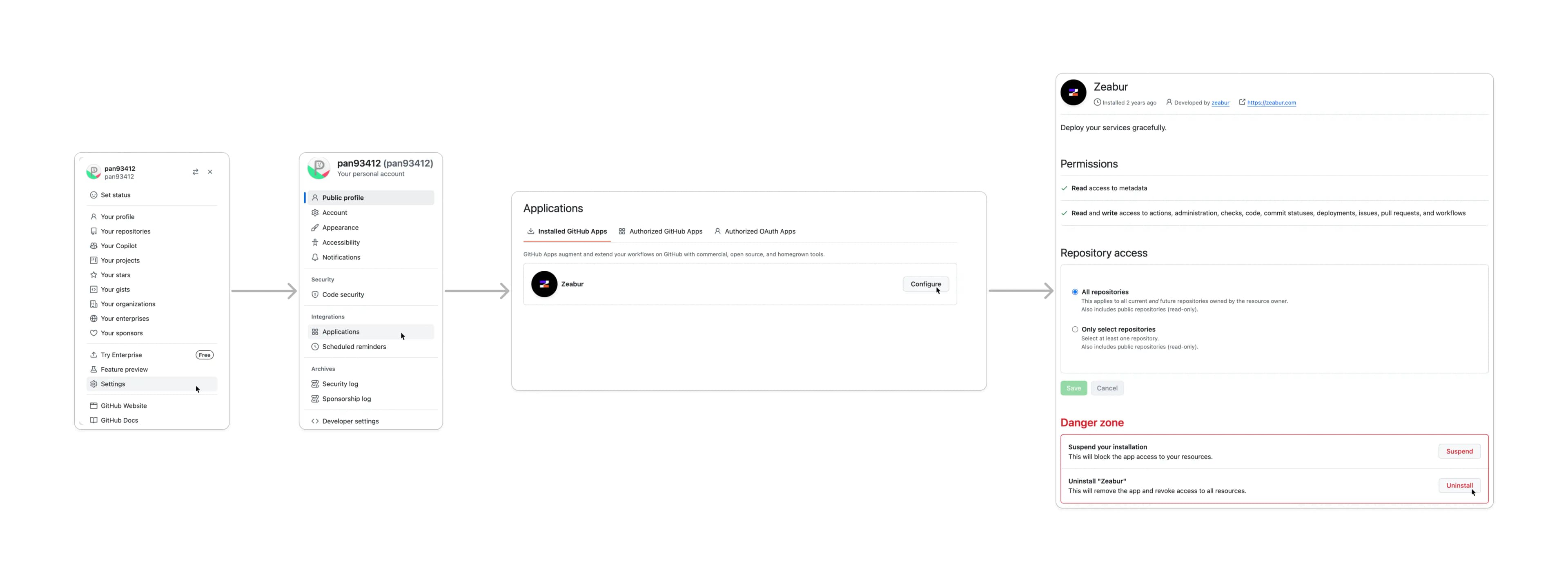
For organization accounts, you’ll need to additionally select the organization you want to operate in from “Switch to another account” in the Settings.