Gateway
Gateway lets you route traffic to multiple services within a project through a single entry point. Instead of binding a separate domain to each service, you can configure one domain and use the gateway to direct requests to different services and ports.
For Wonder Mesh projects, use Public Access via Gateway instead — it routes internet traffic through a dedicated server to your mesh devices.
Enabling Gateway
To enable Gateway, navigate to your project in the Zeabur Dashboard, then open the sidebar and go to Add-ons → Gateway → Enable.
Once enabled, a gateway service will be created in your project. You can then start adding routes to direct traffic to your services.
Adding Routes
After enabling the gateway, open the Networking tab in the gateway service to add routes. Each route maps a public domain to a specific service and port within your project.
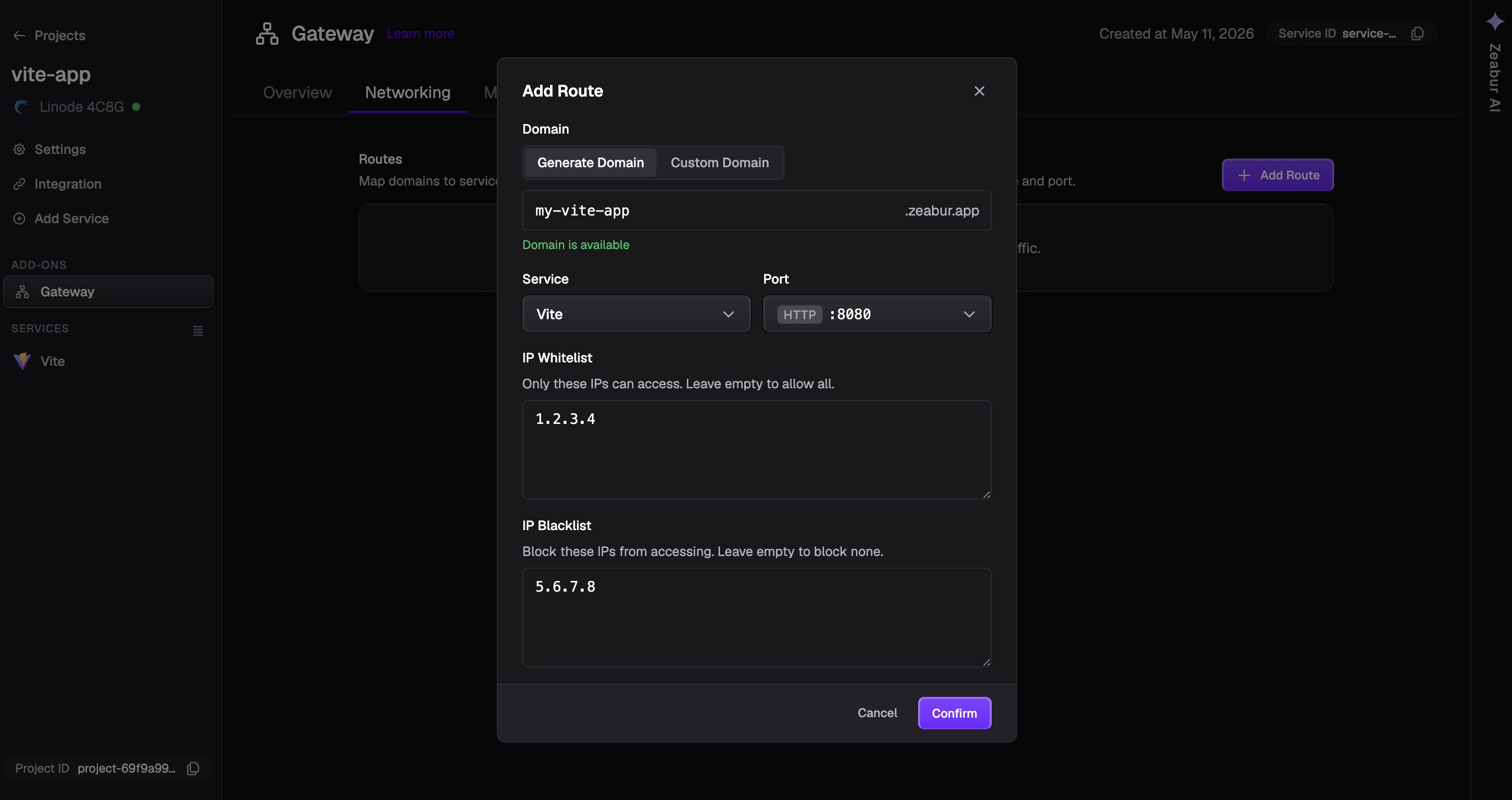
Generate Domain
Click Generate Domain to create a domain with the .zeabur.app suffix. Then select the target service and port to route traffic to.
Custom Domain
Click Custom Domain to use your own domain name. Enter your domain, then select the target service and port.
After adding a custom domain, you will need to configure DNS records. Refer to the DNS configuration for custom domains section below.
DNS Configuration for Custom Domains
After adding a custom domain to the gateway, you will see the DNS information required for your domain.
You need to add a CNAME record pointing to the hostname provided by Zeabur at your DNS provider. For example, if you use Cloudflare, add the CNAME record in the “DNS” → “Records” section.
For root domain DNS settings (zone apex), refer to the Root Domain DNS Settings section in the Public Networking documentation.
IP Whitelist / Blacklist
Gateway supports IP-based access control to restrict who can access your services through the gateway.
- Whitelist: Only allow requests from specified IP addresses.
- Blacklist: Block requests from specified IP addresses.
To configure, open the gateway settings and add IP addresses to the whitelist or blacklist as needed.
IP access control only supports IPv4 addresses. IPv6 is not supported.
Managing Routes
Edit Upstream
To change the target service or port of an existing route, click the route entry and update the service and port fields.
Delete Routes
To remove a route, click the delete icon next to the route entry and confirm the deletion.
Settings
Update Image Version
When a new version of the gateway image is available, you can update it from the gateway service settings. This applies the latest improvements and fixes to your gateway.
Delete Gateway
To remove the gateway from your project entirely, go to the gateway service settings and select Delete. This will remove all routes and the gateway service from your project.