Get Started
Follow these steps to turn your device into a Zeabur server using Wonder Mesh.
Prerequisites
We recommend using a fresh machine to avoid conflicts with existing software.
If you have Tailscale or K3s already installed, the setup script may interfere with your existing configuration.
Your device must meet the following minimum requirements. On macOS, these refer to the resources allocated to the virtual machine, not the Mac itself — make sure your Mac has enough headroom beyond these minimums.
| Resource | Minimum |
|---|---|
| CPU | 2 cores |
| Memory | 2 GB |
| Disk | 40 GB |
Not sure about your device’s architecture? Run the following command to check:
# x86_64 = amd64, aarch64 = arm64
uname -m
Create a New Project
Go to the Zeabur Dashboard and create a new project.
Add Your Device as a Wonder Mesh Server
In “Create New Project” page, under “Select a Server”, select Bind External Server, then choose Wonder Mesh. Configure your device’s architecture (amd64 or arm64) and operating system (Linux or macOS).
For macOS, you will also need to specify the virtual machine resource allocation:
- CPU cores — at least 2; recommend 4 if your Mac has 8+ cores
- Memory (GB) — at least 2 GB; recommend 4 GB if you plan to run multiple services
- Disk size (GB) — at least 40 GB; increase if you use large container images or need persistent storage
These resources are reserved for the Wonder Mesh virtual machine and will not be available to your macOS host while the VM is running. Choose values that leave enough headroom for your daily work.
After confirming, you will be redirected to the server page.
Run the Install Script on Your Device
On the server page, click View Install Command to reveal the full install command. Copy it and run it in a terminal on the device you want to register.
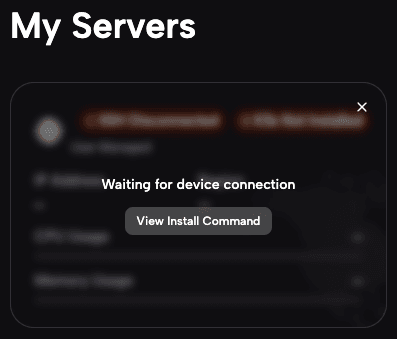
On macOS, do not use sudo. The installer will request elevated permissions when needed.
The install script will install Tailscale, create a zeabur system user, and configure SSH on your device.
For a full breakdown, see What Does the Install Script Do?.
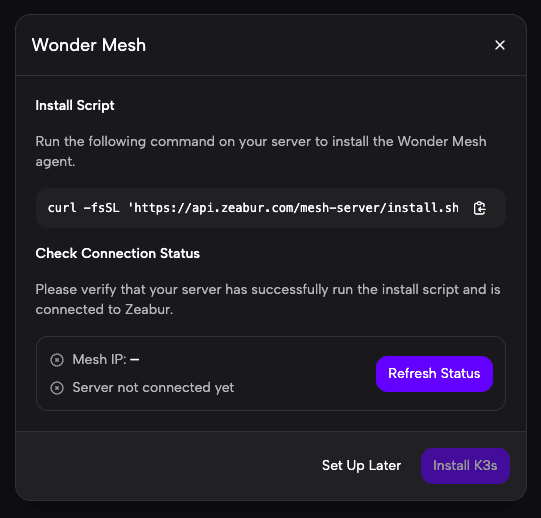
When the script finishes successfully, you should see output similar to:
=== Zeabur Mesh Server Setup ===
Installing Tailscale...
Tailscale installed: 1.94.2
Ensuring tailscaled is running...
Downloading wonder binary...
Joining Wonder Mesh Network...
Connecting to Wonder Mesh Net...
Successfully joined Wonder Mesh Net!
SSH server already running, skipping installation...
Enabling SSH password authentication...
Configuring SSH user...
Completing registration...
=== Zeabur Mesh Server Setup Complete ===
Mesh IP: 100.x.x.x
Wait for the Server to Connect
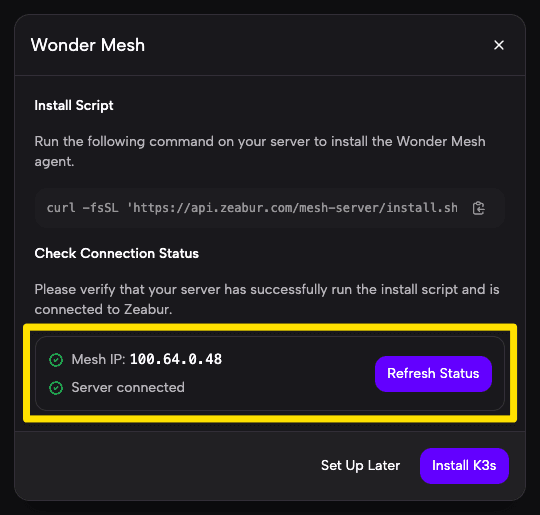
After the installation completes, your device will appear as connected in the console.
Install K3s
Once the device has joined the mesh network, click Install K3s in the console. K3s is the runtime engine Zeabur uses to manage and run services on your device. You don’t need any Kubernetes knowledge — just click the button and wait for it to finish.
Start Deploying
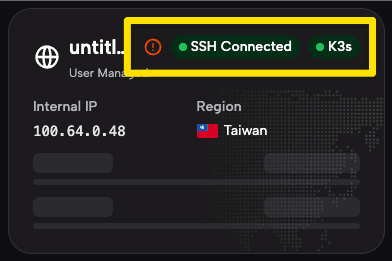
When the server shows a healthy status, you can deploy services to it just like any other Zeabur server.
Troubleshooting
Installation gets stuck or fails
- Check the installation log for errors:
cat /tmp/zeabur-install.log - Make sure your device has a stable internet connection.
- Verify that the Tailscale daemon is running:
sudo systemctl status tailscaled # Linux - If Tailscale appears stuck, restart it and re-run the install command:
sudo systemctl restart tailscaled # Linux
Server shows as disconnected
- Confirm the Tailscale daemon is still active:
tailscale status - If it shows as stopped, restart it:
sudo systemctl restart tailscaled # Linux - On macOS, make sure the Lima VM is running:
limactl list
If the issue persists, contact Zeabur Support with the contents of /tmp/zeabur-install.log.
Accessing Services
Services deployed on a Wonder Mesh server work just like services on any other Zeabur server — you can bind domains, set up port forwarding, and expose them to the internet. See Public Networking for details.
Services in the same project can also communicate with each other using internal hostnames. See Private Networking for details.
From Your Local Network
You can access services directly from any device on the same local network (Wi-Fi or Ethernet). Follow these steps:
-
Find the port number — Open your service page in the Zeabur console and go to the Networking tab. Look for the port number assigned to your service (e.g.,
32518).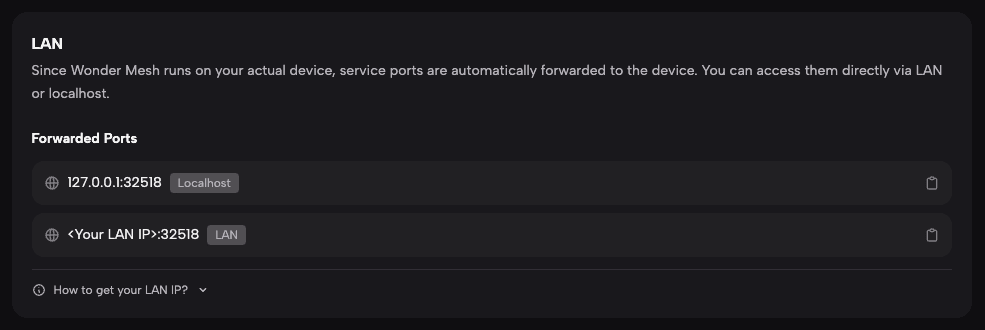
-
Find your device’s LAN IP — Run one of these commands on your actual device’s terminal (not inside the service or Zeabur Server SSH):
- Linux:
hostname -I - macOS:
ipconfig getifaddr en0(if this returns nothing, runroute -n get default | grep interfaceto find the active interface name, then useipconfig getifaddr <interface>)
- Linux:
-
Open the service — From any device on the same network, open
http://<lan-ip>:<port>in a browser or client.For example, if your LAN IP is
192.168.1.42and the assigned port is32518:http://192.168.1.42:32518
On macOS, the Lima VM forwards ports 30000–32767 to the host. Services on these ports are accessible from your LAN using your Mac’s IP address — no extra configuration is needed.
Uninstalling
To remove Wonder Mesh from your server, see Uninstall.