Maintain your Server
This article will introduce how to maintain your server registered with Zeabur.
If you purchased a server from Zeabur, the operation and maintenance tasks are performed by us. Please submit a ticket to let us know which project you want to maintain, and our staff will handle it for you.
Space Cleanup
If you find that the disk space on your host is insufficient, you can try cleaning up the Docker images pulled by K3s on your host (this is usually done automatically).
# Check which images have been pulled (no need to type this line)
$ sudo k3s crictl images

# Remove all unused images
$ sudo k3s crictl rmi --prune
Sometimes, the logs recorded by K3s for each container can also take up a lot of space. You can try cleaning these logs in the K3s logs directory.
Mounting a Volume on a Dedicated Server
If you want to expand persistent storage for a Dedicated Server, you can mount an additional disk to /var/lib/rancher/k3s/storage on the server itself. This is a host-level maintenance operation. You can use the SSH entry in the left sidebar of the Zeabur server page to enter the server and run the required commands.
For example, you can use the following command to mount an additional disk to /var/lib/rancher/k3s/storage:
sudo mount /dev/sdb1 /var/lib/rancher/k3s/storageReplace /dev/sdb1 with your actual disk partition name.
If you want the disk to remain mounted after a server reboot, you can add the mount entry to /etc/fstab. Using a UUID is recommended over a device path like /dev/sdb1, as device names can change across reboots or hardware changes. Use blkid to find the UUID:
sudo blkid /dev/sdb1Then add the entry using the UUID:
echo 'UUID=<your-partition-uuid> /var/lib/rancher/k3s/storage ext4 defaults,nofail 0 2' | sudo tee -a /etc/fstabReplace <your-partition-uuid> and ext4 with your actual partition UUID and filesystem type. After updating /etc/fstab, we recommend running the following command to verify the configuration:
sudo mount -aAfter the mount is complete, the disk space will be used as shared storage for services on the entire Dedicated Server.
This operation will make the existing contents of /var/lib/rancher/k3s/storage inaccessible while the volume is mounted (they are hidden, not deleted, and will reappear if the volume is unmounted). It will also affect any persistent data currently relying on that path. Make sure to back up the relevant data first, and perform this during a maintenance window or migration to avoid service interruption or data loss.
Recovering from OOM (Server Offline)
If your server runs out of memory (OOM), the K3s status indicator on the server dashboard may turn red, meaning Kubernetes is no longer running properly. When this happens, your services will become unreachable.
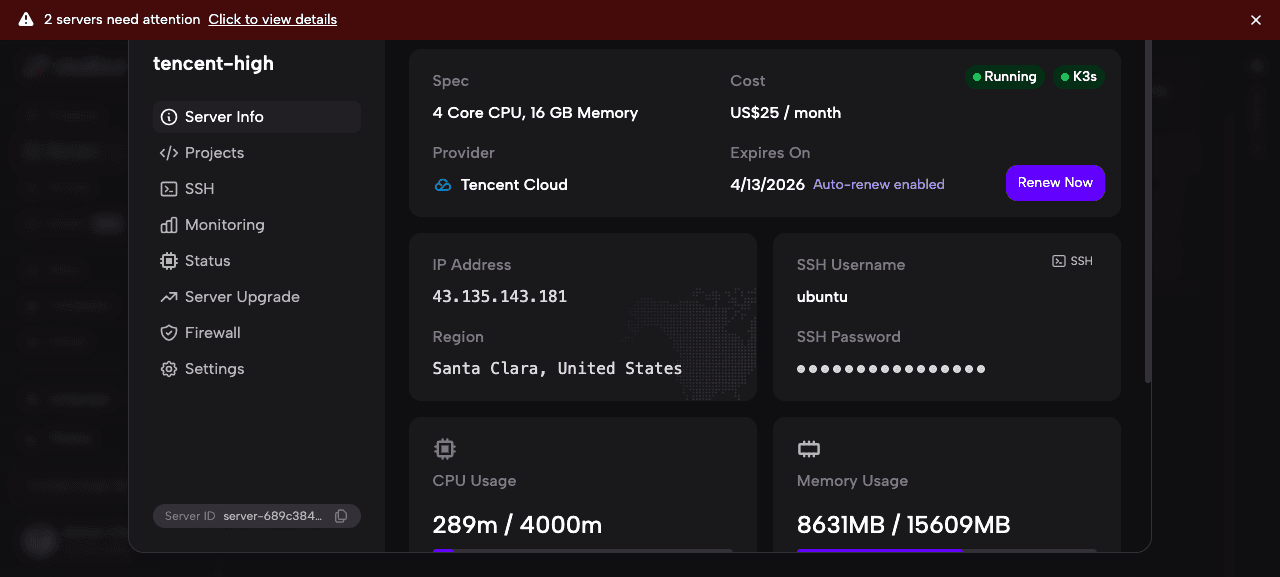
To recover, go to Settings and click Reboot Server.
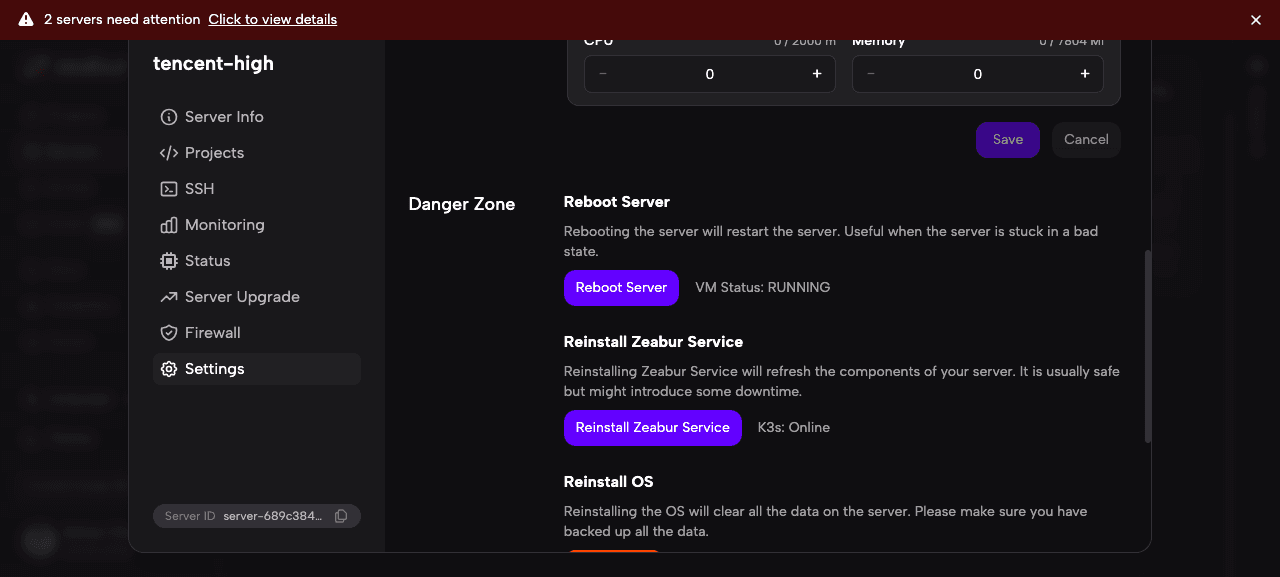
A dialog will appear listing all services that will automatically restart after the reboot. If K3s is red (offline), we recommend deselecting all services to prevent the server from immediately running out of memory again after restarting.
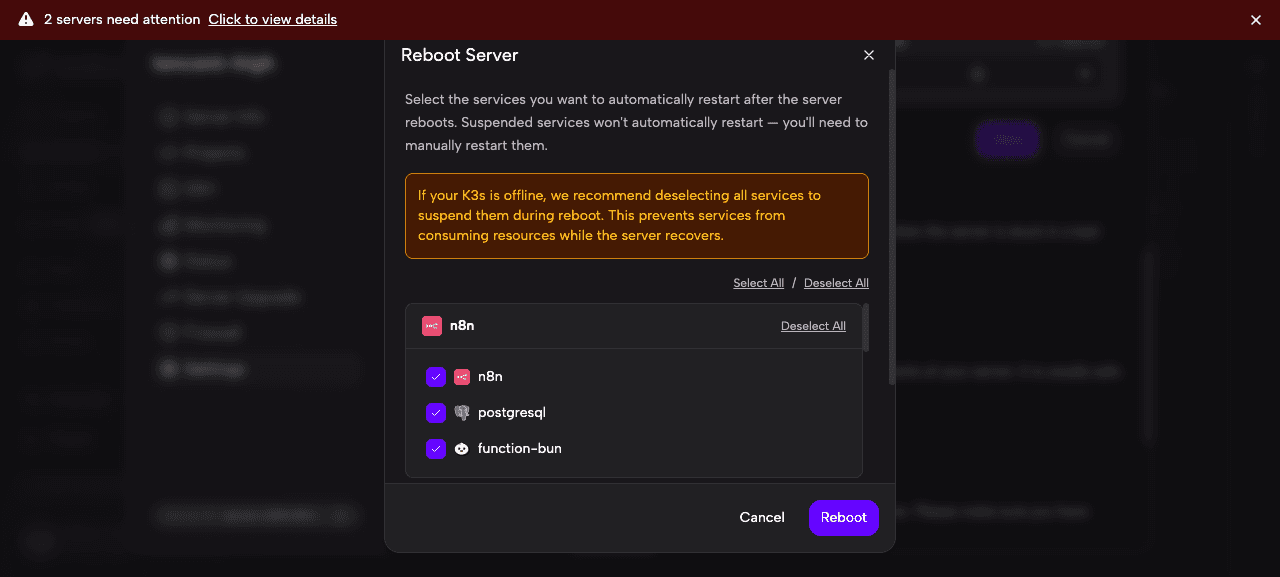
Click Deselect All to prevent any services from auto-starting, then click Reboot.
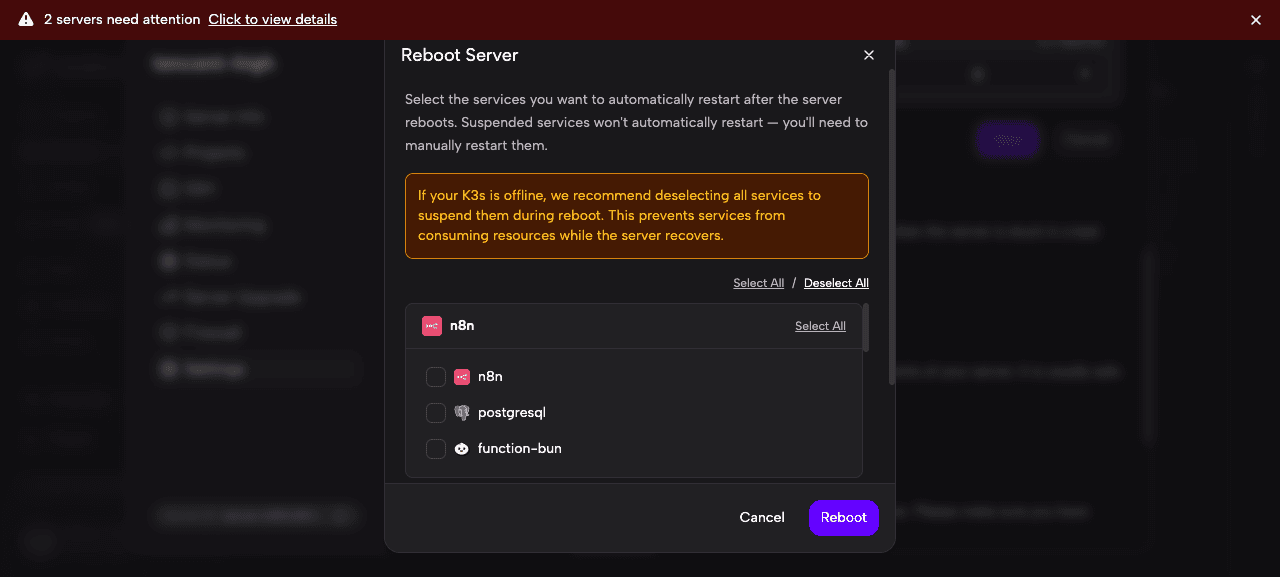
The reboot process takes about 3–5 minutes. Once the server restarts, K3s should return to green. After confirming the server is healthy, you can re-enable services one by one from the Projects tab.
If your server frequently goes OOM, consider upgrading to a larger server or reducing the number of services deployed. You should also configure Resource Reservation (see below) to prevent the system from being completely starved of resources.
Resource Reservation
Resource Reservation allows you to reserve CPU and memory for Kubernetes and system processes, ensuring the server stays reachable even under heavy load. This prevents OOM situations where the operating system or Kubernetes itself gets killed.
Go to Settings > Advanced Settings > Resource Reservation.
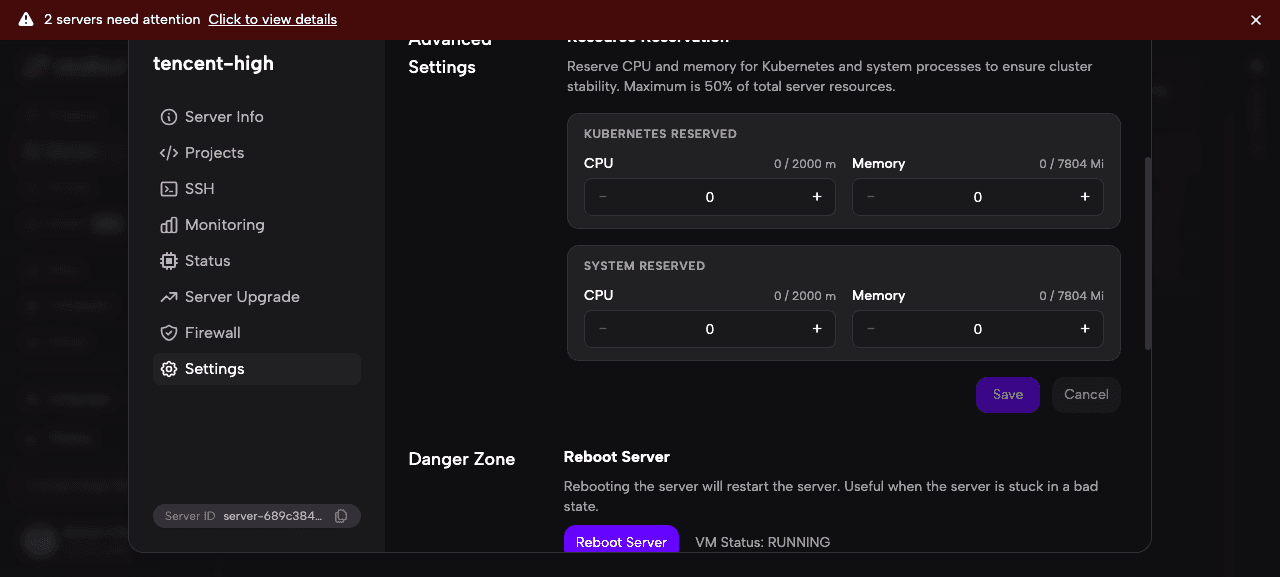
There are two categories of reservation:
- Kubernetes Reserved: Resources reserved for Kubernetes system components (kubelet, kube-proxy, etc.)
- System Reserved: Resources reserved for OS-level processes (SSH, systemd, etc.)
Newly purchased servers default to 500m CPU / 512Mi memory for both Kubernetes and system reservations. We recommend keeping these defaults to ensure server stability. If you previously purchased a server without these defaults, consider setting them manually.
After adjusting the values, click Save to apply the changes.
Changing DNS Nameservers
By default, Zeabur’s servers use Cloudflare DNS as the DNS nameservers for the cluster (machines in mainland China use Alibaba Cloud Public DNS).
If you need to change the DNS nameservers used by the cluster (for example, to Tencent Cloud’s DNSPod Public DNS), you can edit /etc/resolv.kubelet.conf and change the nameserver to the DNS nameservers you want.
nameserver 119.29.29.29Remember to restart the K3s service after making changes.
$ sudo systemctl restart k3sDisabling Zeabur Services
If you own a server, you can disable all Zeabur services and use the VPS freely for other purposes, such as running Docker Compose services.
Disabling Zeabur services means you will not be able to create projects and services from the Zeabur dashboard, and any services currently running on Zeabur will stop. However, you can still manage server settings such as firewall rules and reboots. Note that reinstalling the server from Zeabur will reinstall and re-enable Zeabur services.
Disable Zeabur Services
You can also click the SSH option in the Zeabur Dashboard sidebar to connect to your server directly from the browser, no local terminal required:
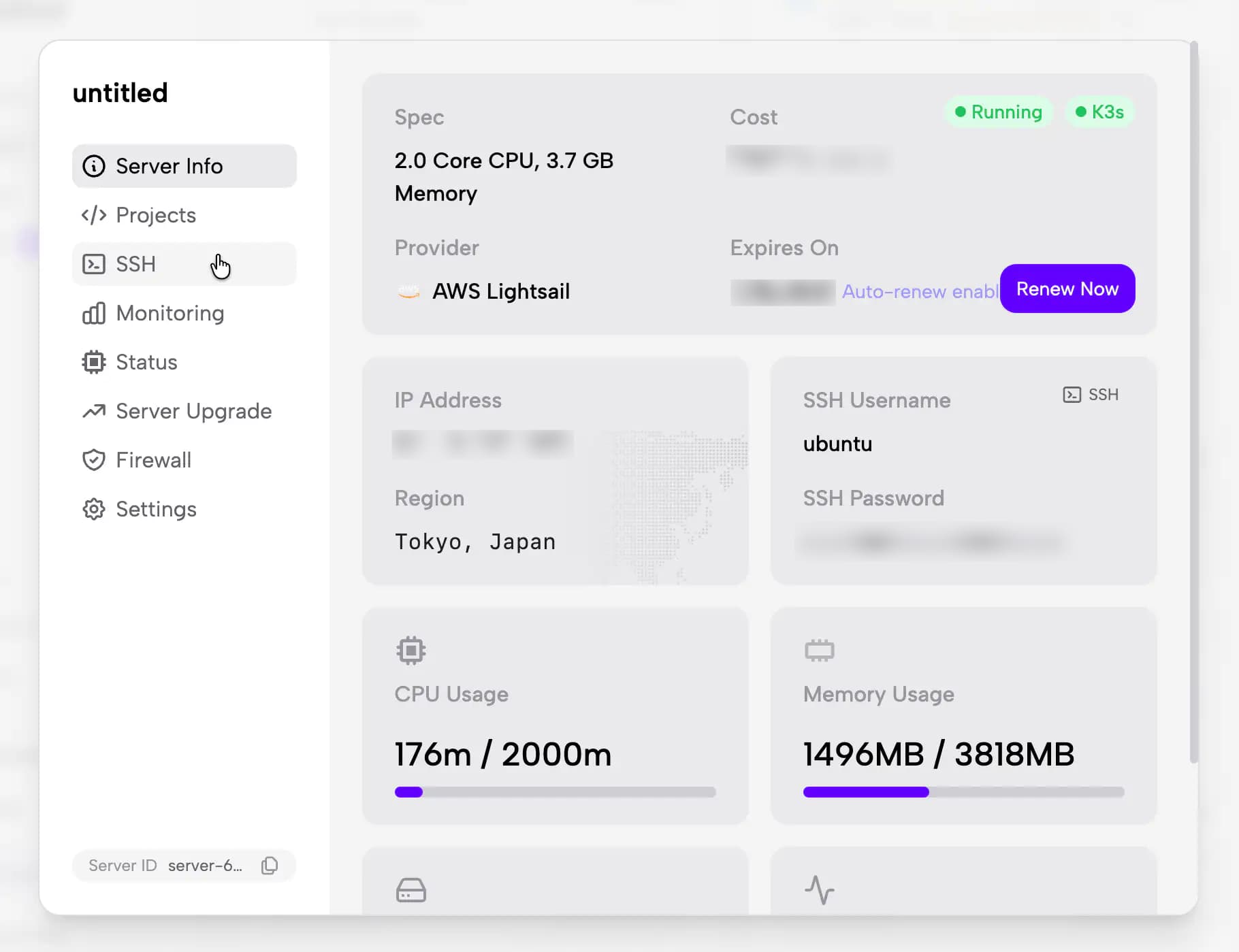
Or connect via SSH and run:
sudo systemctl disable --now k3s containerdNote: Stopping these services will cause all containers and services running on the server to stop. Please proceed with caution.
Re-enable Zeabur Services
If you want to bring Zeabur back online, connect via SSH and run:
sudo systemctl enable --now k3s containerdUsing VS Code for Remote Development
You can use VS Code Remote - SSH to connect to your server and directly edit files or operate containers in a familiar IDE environment.
Step 1: Install the Remote-SSH Extension
Open VS Code and install the Remote - SSH extension from the Extensions Marketplace.
Step 2: Set Up SSH Key Authentication
Generate an SSH key pair on your local machine (if you don’t have one) and add the public key to the server:
# Generate an SSH key pair on your local machine
$ ssh-keygen -t ed25519

# Copy the public key to the server
$ ssh-copy-id <username>@<server-ip>
If ssh-copy-id is not available, you can manually append the public key:
$ cat ~/.ssh/id_ed25519.pub | ssh <username>@<server-ip> "mkdir -p ~/.ssh && cat >> ~/.ssh/authorized_keys"Step 3: Connect via VS Code
Open the VS Code Command Palette (Ctrl+Shift+P / Cmd+Shift+P), select Remote-SSH: Connect to Host, and enter <username>@<server-ip> to connect.
Step 4: Locate the Service’s File Storage Path
After connecting, you will be at the server’s root directory. To find where your service’s files are stored, first locate the PVC (Persistent Volume Claim) for your service, then find the corresponding PV (Persistent Volume) and its host path.
The PVC name follows the format <volume-id>-service-<service-id>, located in the namespace environment-<environment-id>.
# List all PVCs to find your service's volume
$ kubectl get pvc -A

# Find the PV that the PVC is bound to
$ kubectl get pvc <pvc-name> -n <namespace> -o jsonpath='{.spec.volumeName}'

# Get the host path of the corresponding PV
$ kubectl get pv <pv-name> -o jsonpath='{.spec.local.path}'
You can then open this path in VS Code using File → Open Folder to start editing your service’s files.
Step 5: Access a Container Shell
To get a terminal environment inside your service’s container (equivalent to the Web Terminal on Zeabur):
# List pods in a namespace
$ kubectl get pods -n <namespace>

# Open a shell in a pod
$ kubectl exec -it <pod-name> -n <namespace> -- /bin/sh
Uninstallation
First, you need to remove the server and the services deployed on it from Zeabur.
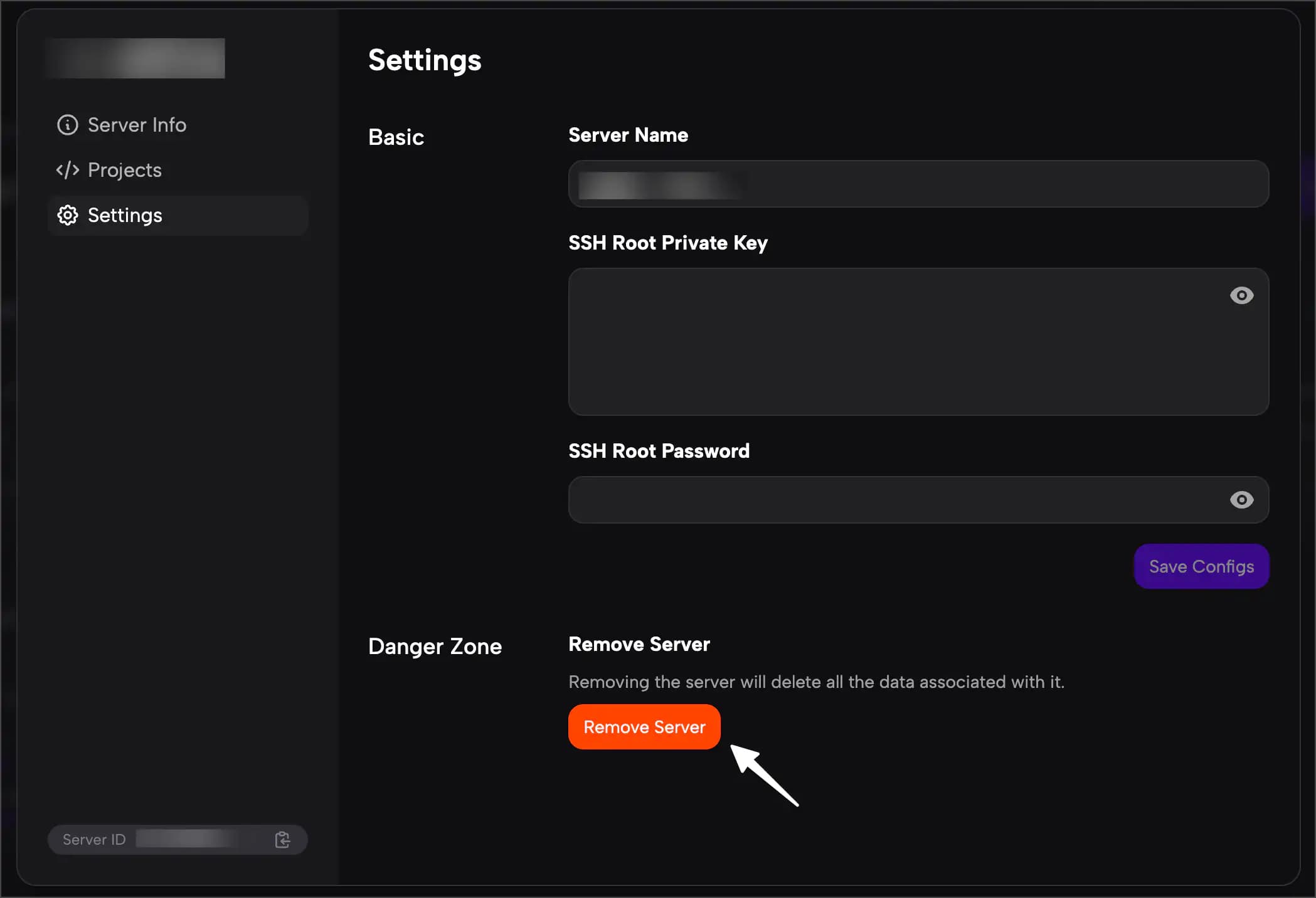
The “Remove Server” step will not remove the infrastructure set up by Zeabur on your server. Zeabur’s infrastructure is primarily built on K3s, so the uninstallation steps follow the K3s uninstallation steps.
$ /usr/local/bin/k3s-uninstall.sh